SSIS Catalog Migration Wizard

Migrate your entire SSISDB
in just a few clicks

Stop spending days on manual SSIS migrations. SSIS Catalog Migration Wizard Pro moves your packages, environments, parameters, and permissions to any SQL Server — automatically, accurately, every time.

SSMS 18 – 22 Visual Studio 2017 – 2026 SQL Server 2012 – 2025 Azure ADF IR Works fully offline
★ 5
VS Marketplace rating
9,000+
Downloads
24/7
Engineer support
Trusted by data & BI teams at
What it does

Everything you need for a clean SSISDB migration

From a single folder to a full enterprise catalog — the Wizard handles every scenario, automatically.

🔄
Full catalog migration in one pass

Folders, .ispac files, environments, environment variables, project and package parameters, connection strings, and explicit permissions — migrated completely, in the right order.

🔍
Pre-migration inspection & health check

Catch broken environment variable references and orphaned configurations before migration starts. Export a full inspection report as CSV to fix issues upstream.

🔒
Runs entirely inside your network

All connections are direct SQL API calls within your own network — zero data ever leaves it. For airgapped or cross-domain moves, export the catalog to a .scmw file and import it on the target machine instead.

🤖
CLI automation + CI/CD integration

Automate SSISDB migrations and backups via command-line. Integrates with SQL Agent jobs, Azure DevOps, GitHub Actions, and any CI/CD scheduler — no UI required.

⚙️
Smart environment variable replacement

The wizard proactively suggests replacement values for connection strings, file paths, and credentials — so your packages run correctly in the target environment without manual edits.

📊
Source vs target catalog comparison

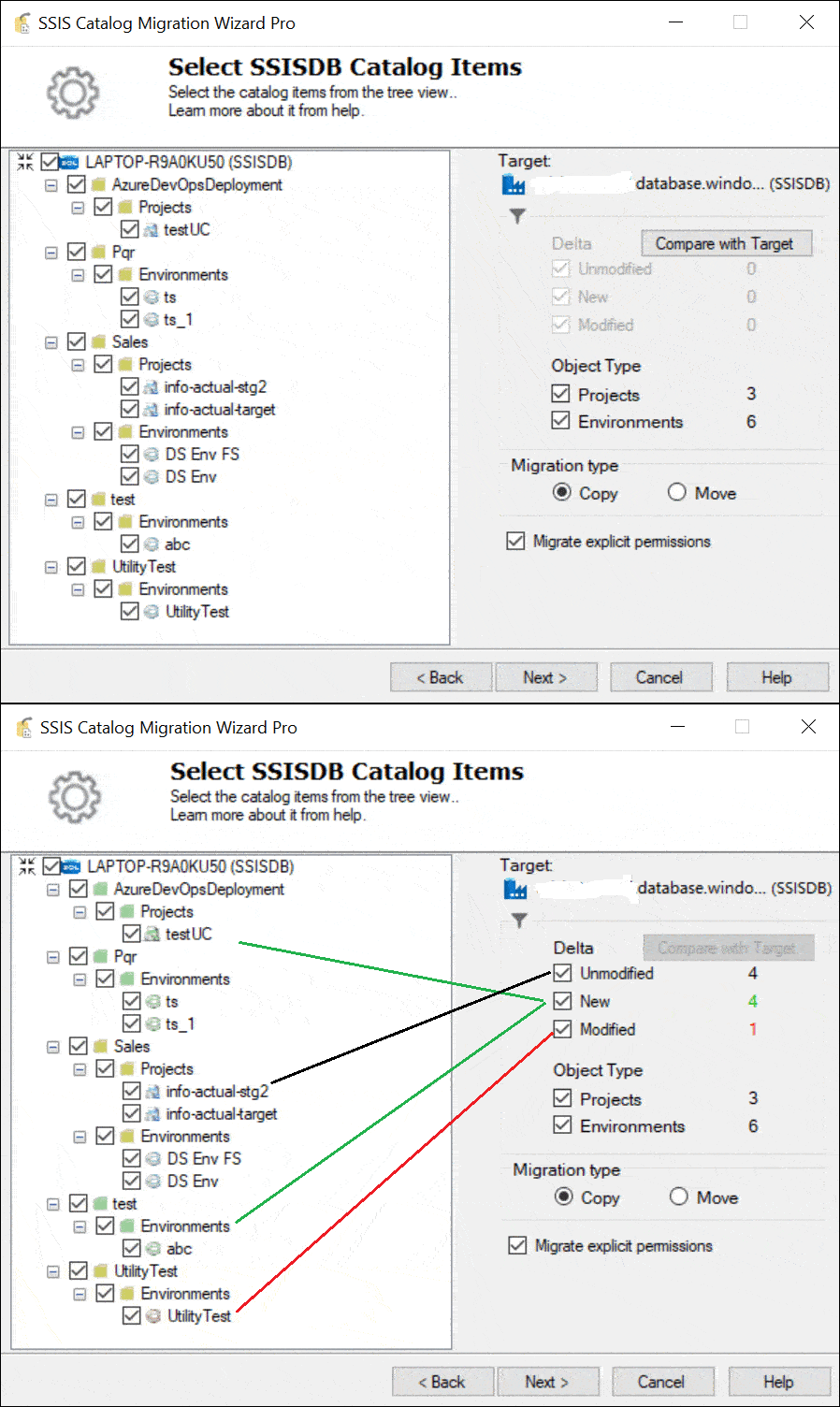
Compare source and target SSISDB side by side. Green = new, red = changed. Migrate only what has changed — perfect for incremental dev-to-production deployments.

How It Works

A guided wizard — from connection to completion

Follow the same simple workflow you'll use in the real application. Each step shows you exactly what to expect before you start.

Watch a Quick Demo
1
2
3
4
5
6
7
Step 1

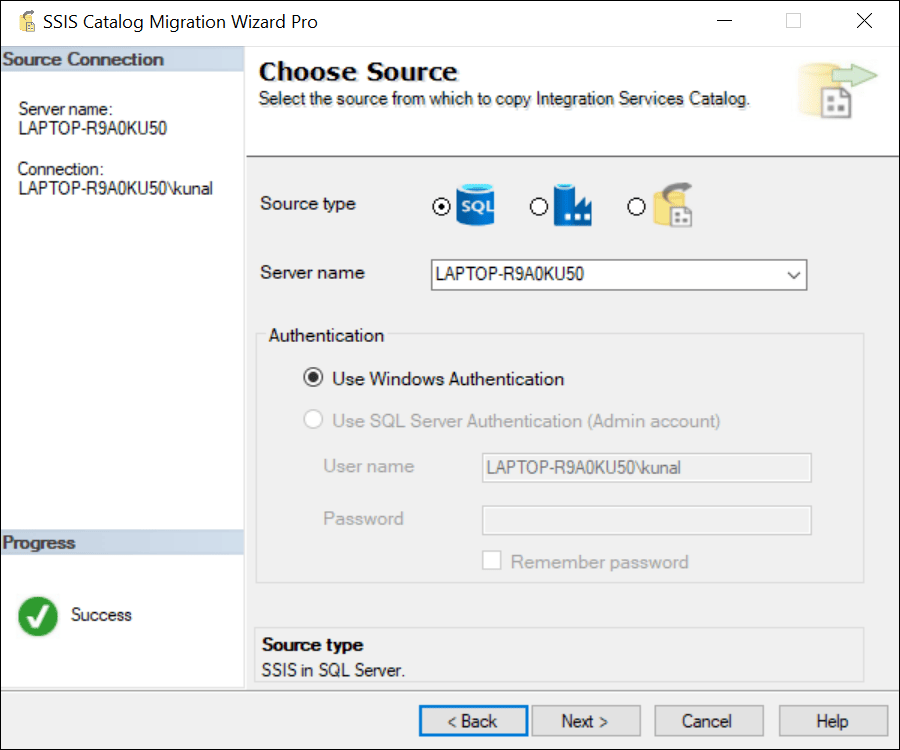
Choose your source

Select the SQL Server radio button and provide the SQL Server instance that hosts your SSISDB catalog.
  • Provide the source SQL Server instance name.
  • Connect using Windows Authentication.
  • The connecting user must hold the ssis_admin role.
Step 2

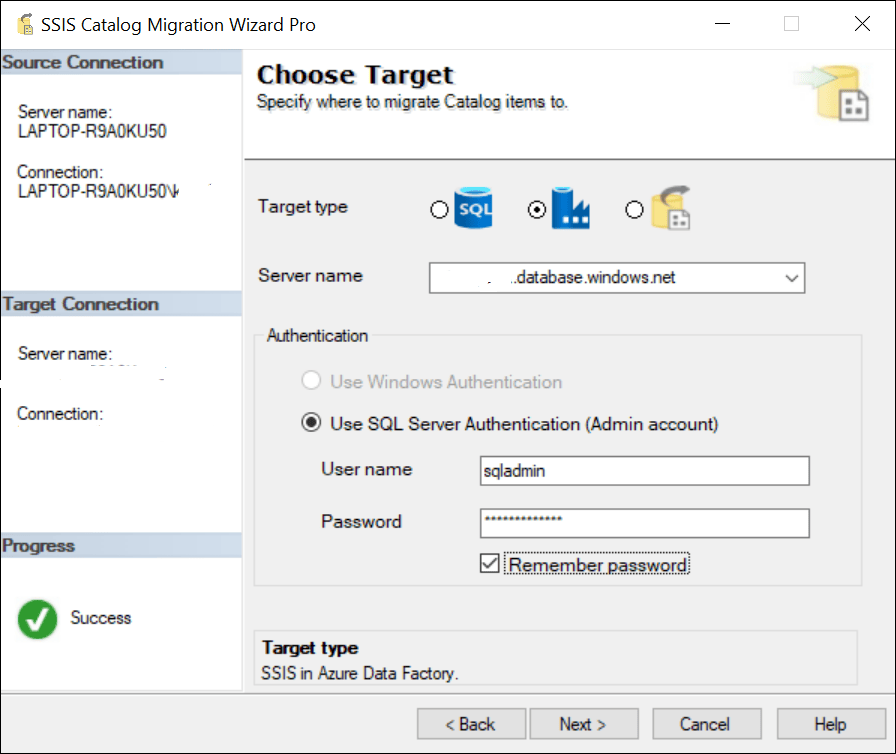
Choose your target

Select the Azure Data Factory radio button and point the wizard to the destination catalog for your SSIS projects.
  • Provide the Azure SQL Server hostname.
  • Enter the admin SQL Server authentication username and password.
  • Only SQL authentication is supported for the Azure SQL Server connection.
Step 3

Select catalog items to migrate

Browse the SSISDB catalog treeview and choose exactly which folders, projects and environments to move.
  • Compare source and target — changed items are flagged for review.
  • Optionally migrate only project references and parameter values.
  • Choose migration type: copy (default) or move.
  • Optionally migrate explicit folder, project and environment permissions.
Step 4

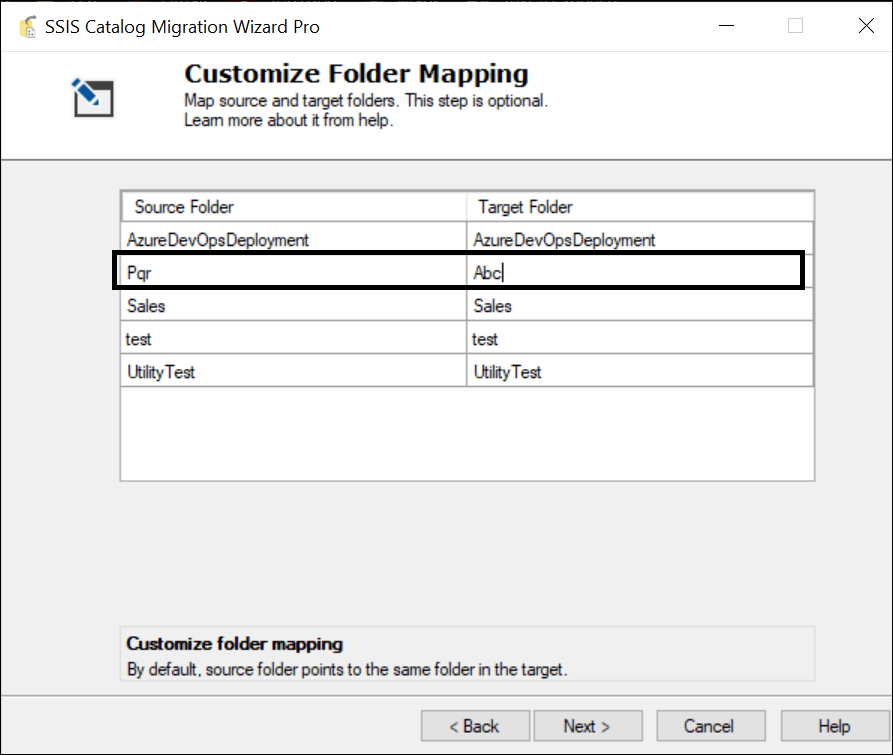
Customize folder mapping

The wizard pre-populates source and target folder names — edit the Target Folder column to rename or consolidate as needed.
  • Rename target catalog folders during migration.
  • Map source folders to different target names.
  • Consolidate multiple source folders into one target folder.
  • This step is optional.
Step 5

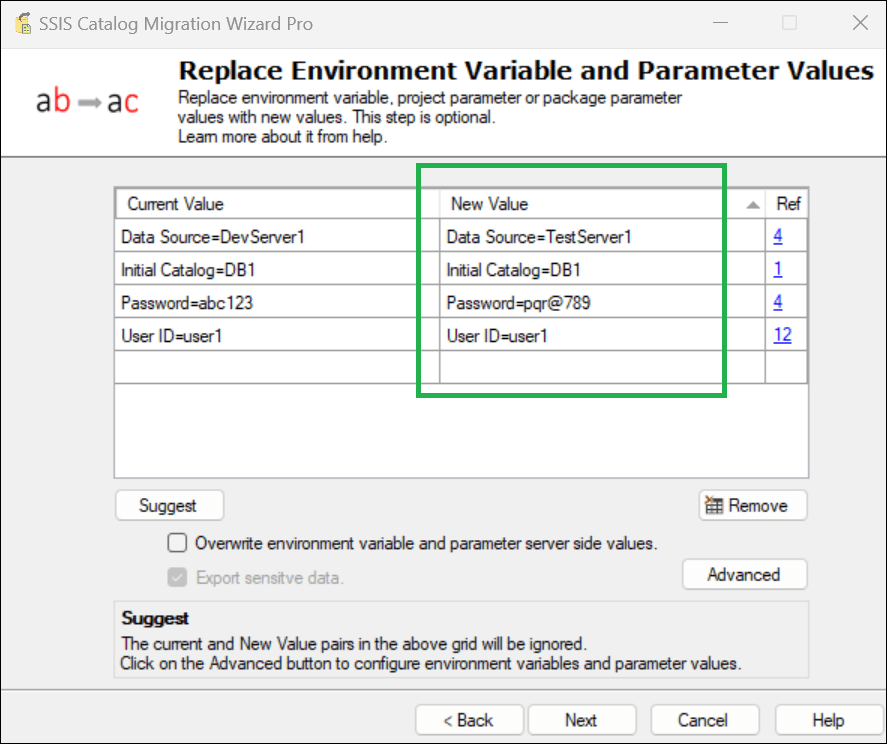
Replace variables & parameters

Configure key-value replacements so environment variables and project or package parameters line up with the target environment.
  • Use Suggest for recommendations based on the selected Replace Scope.
  • Click the Ref column to review detailed variable and parameter mappings.
  • Common use case: updating a SQL Server connection string for the target.
  • Ideal for standing up a parallel ETL environment without manual edits.
Step 6

Review & confirm

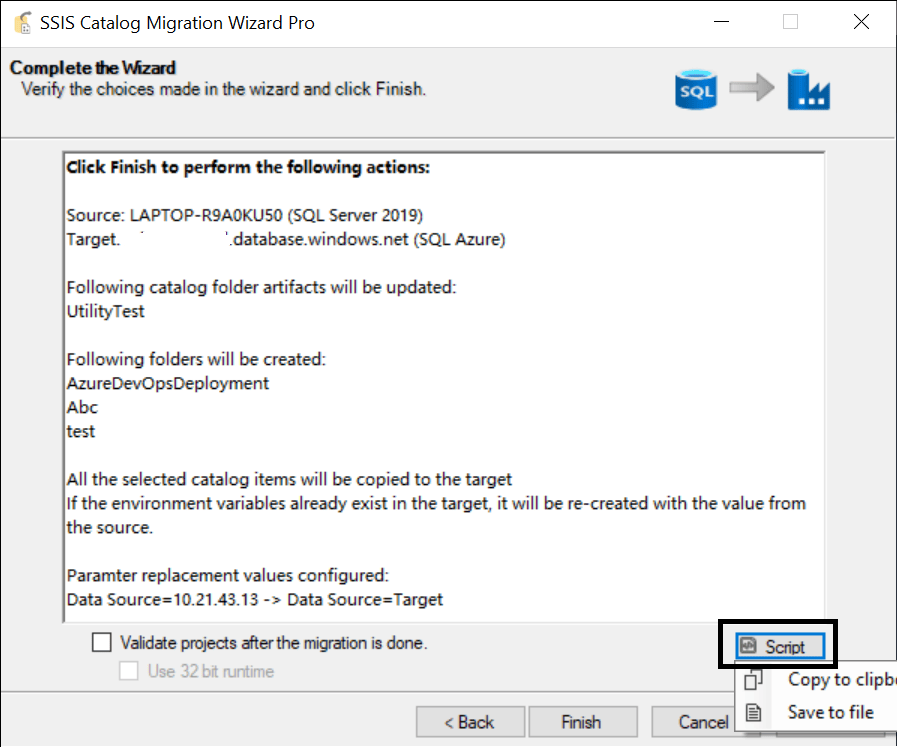
Before anything is committed to the target catalog, review the full deployment summary and make sure everything is ready.

  • Confirm the source and target selections.
  • Review the selected SSISDB catalog items.
  • Double-check folder mapping and variable replacements.
  • Click Finish once the summary looks correct.
Step 7

Migrate & monitor

The wizard performs the migration and reports results live — folder by folder — as the catalog is deployed to the target.

  • Monitor progress through the live migration grid.
  • Hover the Result column to see warnings or errors per folder.
  • Successful items are marked "Passed".
  • Verify your SSISDB catalog was transferred successfully.
Customer Reviews

What our customers are saying

Real feedback from database administrators and IT teams running the wizard in production.

DevOps integration

Automate your SSIS deployments via CLI

Annual and Perpetual plans include the SCMW command-line utility. Schedule migrations, run them in CI/CD pipelines, or automate nightly SSISDB backups — no UI required.

Works with SQL Agent jobs — schedule regular SSISDB backups or incremental deployments

Azure DevOps & GitHub Actions — integrate SSISDB deployment into your release pipeline

Selective item migration — specify exactly which folders, projects, and environments to migrate

Custom log file location — full execution logs saved to a path you specify for audit trails

Example CLI commands
# Full catalog migration, source → target
SSIS.Cataloger.Pro.exe /st:0 /ssn:SourceServer /tt:0 /tsn:TargetServer

# Export SSISDB to .scmw backup file
SSIS.Cataloger.Pro.exe /st:0 /ssn:. /tt:2 \
  /scmwfp:"D:\Backups\backup.scmw"

# Selective migration + log output
SSIS.Cataloger.Pro.exe /st:0 /ssn:SourceServer \
  /tt:0 /tsn:TargetServer \
  /items:"[{FolderName:Sales}]" \
  /lfd:"D:\Logs"

Full CLI reference: ssiscataloger.azureops.org/automation →

Pricing

Choose the plan that fits your team

All plans include the complete SSIS Catalog Migration Wizard feature set. Perpetual and Enterprise Perpetual unlock CLI automation for scripted, repeatable migrations.

Placeholder
1 Month
For a single, time-boxed SSIS Catalog migration project.
Original price was: $499.Current price is: $249. (Flat 50% OFF)
single seat · 1-month license
Get 1 Month Try Free on VS Marketplace
What's included
Full SSISDB migration — folders, environments, parameters, permissions
Compare source and target catalogs — migrate only what changed
Folder mapping and environment variable/parameter replacement
Bulk export/import via .scmw file for backup or cross-network transfer
Pre-migration inspection for critical SSISDB issues
Azure Data Factory SSIS Integration Runtime support
Automatic validation of migrated projects
Standard support
CLI automation
Single seat · upgrade to 1 Year or Perpetual anytime.
Placeholder
1 Year
For teams running SSIS Catalog migrations across a full project cycle.
Original price was: $999.Current price is: $499. (Flat 50% OFF)
single seat · 1-year license
Get 1 Year Try Free on VS Marketplace
Everything in 1 Month, and:
12-month license term — cover multi-phase migrations without repurchasing
All version updates released during the license term
Standard support
CLI automation
Single seat · upgrade to Perpetual anytime.
★ Recommended
Perpetual
Pay once, own the license, and script migrations via CLI.
Original price was: $1799.Current price is: $899. (Flat 50% OFF)
single seat · lifetime license
Get Perpetual Try Free on VS Marketplace
Everything in 1 Year, and:
Lifetime license — pay once, own it forever
CLI automation utility — script & schedule SSIS Catalog migrations via command line
Integrates with any scheduler or CI/CD pipeline, including SQL Agent
Lifetime version updates — every future release included
Standard support
Single seat · our recommended plan for most teams.
Placeholder
Enterprise Perpetual
For organisations migrating across multiple SSIS Catalog servers and engineers.
Original price was: $2999.Current price is: $1499. (Flat 50% OFF)
up to 5 seats · lifetime license
Get Enterprise Perpetual Talk to us first
Everything in Perpetual, and:
Up to 5 seats — cover your whole migration team on one license
License migration — move seats between machines or team members as your team changes
Priority support — direct access to the engineers who built the tool
Custom invoicing and PO numbers on request
Need more than 5 seats or custom terms? Contact us.
FAQ

Frequently asked questions

Can't find your answer? Email our support team →

Which SQL Server versions are supported?

SQL Server 2012, 2014, 2016, 2017, 2019, 2022, and 2025 — as source or target. Also supports Azure Data Factory SSIS Integration Runtime and Azure SQL Managed Instance.

How many licenses do I need?

One license per installation server. If your source and target SSISDB are both reachable from one machine, you only need one license. The tool grants multi-user access per server.

Does the tool require an internet connection?

No. SSIS Catalog Migration Wizard works fully offline. All connections are direct SQL API calls within your own network. Zero data is ever sent to any external server.

Can I migrate across different networks or domains?

Yes. Use the .scmw export format: export the source catalog to a file, copy it to the target network, and import it there. Install the tool on both machines.

Does it migrate encrypted passwords?

Yes. The wizard handles encrypted connection manager properties and sensitive environment variables. Sensitive data export can also be controlled via settings.

Are discounts available for education or non-profits?

Yes — exclusive discounts for educational institutions and non-profit organisations. Email support@azureops.org from your official address for the discount code.

Ready to migrate your SSISDB without the pain?

Try free from Visual Studio Marketplace, or buy direct with our 100% money-back guarantee.

View Pricing