SSRS Reports Migration Wizard

Migrate your SSRS reports
in just a few clicks

Move folders, reports, datasets, data sources, subscriptions, and roles from any SSRS Native or Power BI Report Server to another in minutes, not days. A guided wizard handles every step.

SSRS Native Mode Power BI Report Server Visual Studio 2017–2026 SSMS Extension CLI Automation Works fully offline
★ 5
VS Marketplace rating
3,000+
Downloads
24/7
Engineer support
Trusted by data & BI teams at
What It Does

Everything you need for a clean SSRS migration

The wizard handles every reporting asset — from folders and reports to subscriptions, roles, data source connections, and linked report relationships.

📋
Full content migration in one guided wizard

Every folder, report, dataset, data source, subscription, and permission — migrated in a single guided pass. See the complete breakdown in "What Gets Migrated" below.

📊
Compare source vs target before you migrate

Generate a detailed CSV showing which items exist on source only, target only, or both — before or after migration. Identify gaps and validate results without manually clicking through SSRS.

🔒
Runs entirely inside your network

All operations execute via direct API calls within your own environment — server credentials and configuration data never leave your network. No cloud upload, no external transfer.

🤖
CLI automation + CI/CD integration

The built-in command-line utility enables fully scripted, scheduled SSRS migrations. Integrate with SQL Agent, Windows Task Scheduler, Azure DevOps, or any CI/CD pipeline. New in v1.5.

🔄
Update data source connections during migration

Review and update connection strings, credentials, and shared data source references as part of the migration flow. Convert embedded data sources to shared ones automatically where a match exists.

📁
Flexible folder mapping & renaming

Rename or consolidate folders during migration. Map source folders to different target paths — all dependent references (data sources, datasets, subscriptions) are automatically updated.

How It Works

A guided wizard — from connection to completion

Follow the same simple workflow you'll use in the real application. Each step shows you exactly what to expect before you start.
Watch a Quick Demo
1
2
3
4
5
6
7
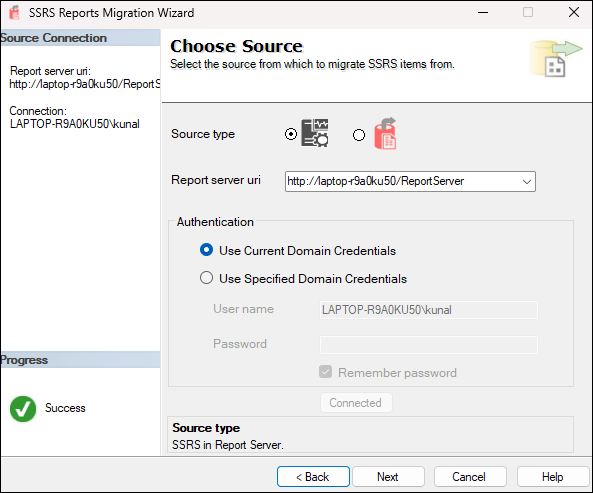
Step 1

Choose your source

Start by telling the wizard where your existing SSRS content lives. Connect directly to an SSRS Report Server or work from an existing SRMW migration file.
  • Choose an SSRS / Power BI Report Server or SRMW file.
  • Enter the Report Server URI.
  • Select the appropriate authentication method.
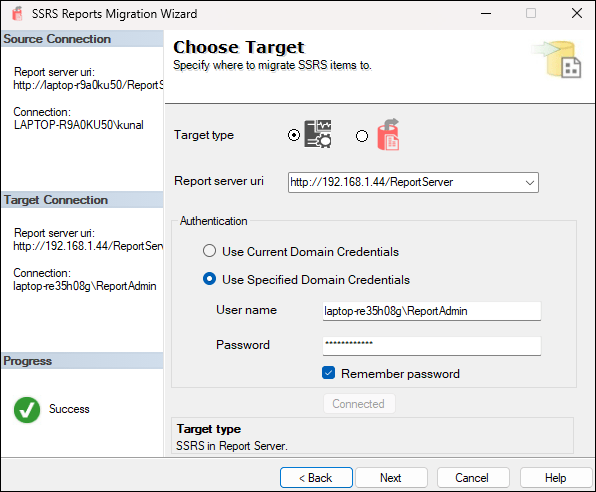
Step 2

Choose your target

Point the wizard to the destination environment where your SSRS content will be deployed.
  • Choose another SSRS / Power BI Report Server or SRMW file.
  • Enter the target server URI.
  • Provide authentication details as required.
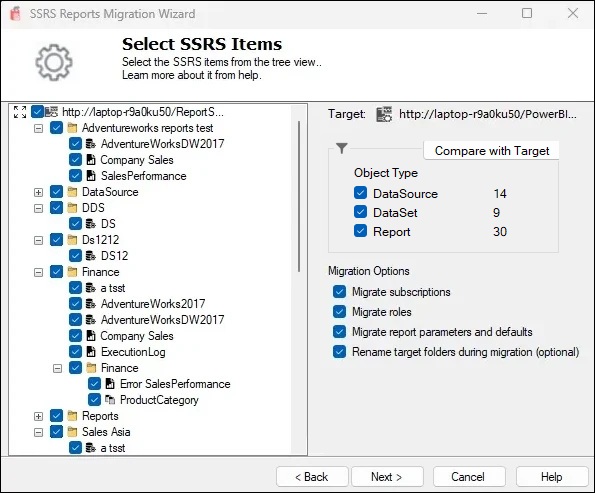
Step 3

Select items to migrate

Browse the SSRS folder hierarchy and select exactly what you want to move to the target environment.
  • Check the boxes next to the folders, reports, and linked reports you want.
  • Datasets and data sources are auto-selected with their parent report.
  • Toggle on subscriptions, roles, or parameters if you want them included too.
  • Click "Compare" to preview source vs. target before you commit.
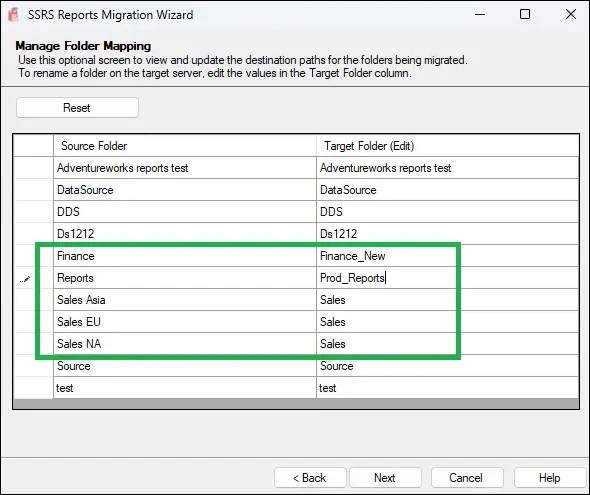
Step 4

Manage folder mapping

When folder renaming is enabled, define how your selected root folders should be created on the target server.
  • Toggle "Rename target folders during migration" on.
  • Type the new name into the Target Name field for each folder.
  • Drag two source folders onto the same target row to merge them.
  • Click Next — the wizard handles every dependent reference for you.
Step 5

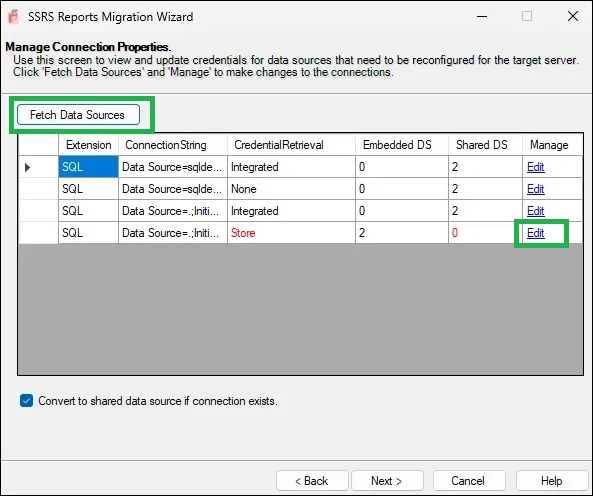
Update data source connections

If the target environment uses different databases or credentials, review and update the connections before migration.

  • Click "Fetch Data Sources" to scan the selected items.
  • Edit the connection string or credential field directly in the grid.
  • Click "Convert to Shared" next to any matched item.
  • Click Next once every connection is confirmed.
Step 6

Review & confirm

Before anything is committed to the target server, review the migration summary and make sure everything is ready.

  • Confirm the source and target selections.
  • Review the selected SSRS items.
  • Check New vs Update migration results.
  • Generate a reusable command-line script if required.
Step 7

Migrate & validate

Click Finish and let the wizard perform the migration. Follow the live log and review the final report when the process completes.

  • Monitor migration progress through the live log.
  • See warnings and skipped operations.
  • Open the detailed migration report.
  • Verify that your SSRS content was transferred successfully.
Use Cases

Built for every SSRS migration scenario

Whether you're doing a one-time server upgrade or running automated nightly deployments, the wizard covers it.

⬆️
Server upgrades

Migrating to a newer SSRS or Power BI Report Server version after infrastructure upgrades.

🔁
Dev → production deployments

Moving reports and datasets from development or staging to production on a regular cadence.

💾
Backups & DR snapshots

Exporting reporting assets to a .srmw file for disaster recovery or archiving purposes.

🔃
In-place updates

Updating data sources, datasets, and report properties on the same server without a full migration.

🏢
Environment consolidation

Merging multiple SSRS instances into one, with folder renaming to avoid namespace conflicts.

⚙️
Automated CI/CD pipelines

Integrating SSRS deployments into Azure DevOps, GitHub Actions, or Windows Task Scheduler via CLI.

Customer Reviews

What our customers are saying

Real feedback from database administrators and IT teams running the wizard in production.

Complete Content Coverage

What gets migrated

Every reporting artifact — migrated faithfully, with all dependencies automatically resolved.

Folders — with optional renaming and folder mapping to new target paths
Reports — .rdl files and server-side report settings
Report Parameters & Defaults — report parameters and their configured default values are migrated with the report
Linked Reports — with parent report relationship and parameter overrides (v1.5+)
Shared & Embedded Data Sources — with optional connection string updates and credential re-entry
Shared Datasets — with all shared references automatically detected and linked
Subscriptions — standard and data-driven subscriptions, including file-share delivery
Shared Schedules — subscription schedule configurations preserved on target
Roles & Permissions — folder, report, dataset, and data source level security roles
Compatibility
📊
Source & Target Servers
SSRS Native Mode (any supported version) · Power BI Report Server (PBIRS) · .srmw file export/import
💻
Host Application
Visual Studio 2017, 2019, 2022, 2026 · SSMS 18+ · Standalone installer also available
🔐
Authentication Methods
Current domain credentials · Specified domain credentials (domain\username + password)
⚠️
SSRS Mode Supported
Native Mode only — SharePoint Integrated Mode is not supported
🌐
Internet Required?
No — see Security above.
View SSRS Reports Migration Wizard documentation
Pricing

Choose the plan that fits your team

All plans include the complete migration feature set. Perpetual and Enterprise Perpetual unlock CLI automation for scripted, repeatable migrations.

placeholder
1 Month
For a single, time-boxed SSRS migration project.
Original price was: $499.Current price is: $249. (Flat 50% OFF)
single seat · 1-month license
Get 1 Month Try Free on VS Marketplace
What's included
Full SSRS content migration — folders, reports, datasets, data sources
Subscriptions, roles, and shared schedules
Linked report support + parameter overrides
Compare with target (source vs target CSV)
Folder mapping and renaming
Power BI Report Server (PBIRS) support
Standard support
CLI automation
Single seat · upgrade to 1 Year or Perpetual anytime.
placeholder
1 Year
For teams running SSRS migrations across a full project cycle.
Original price was: $999.Current price is: $499. (Flat 50% OFF)
single seat · 1-year license
Get 1 Year Try Free on VS Marketplace
Everything in 1 Month, and:
12-month license term — cover multi-phase migrations without repurchasing
All version updates released during the license term
Standard support
CLI automation
Single seat · upgrade to Perpetual anytime.
★ Recommended
Perpetual
Pay once, own the license, and script migrations via CLI.
Original price was: $1799.Current price is: $899. (Flat 50% OFF)
single seat · lifetime license
Get Perpetual Try Free on VS Marketplace
Everything in 1 Year, and:
Lifetime license — pay once, own it forever
CLI automation utility — script & schedule SSRS migrations via command line
Azure DevOps & GitHub Actions integration for automated deployments
Lifetime version updates — every future release included
Standard support
Single seat · our recommended plan for most teams.
placeholder
Enterprise Perpetual
For organisations migrating across multiple SSRS servers and engineers.
Original price was: $2999.Current price is: $1499. (Flat 50% OFF)
up to 5 seats · lifetime license
Get Enterprise Perpetual Talk to us first
Everything in Perpetual, and:
Up to 5 seats — cover your whole migration team on one license
License migration — move seats between machines or team members as your team changes
Priority support — direct access to the engineers who built the tool
Custom invoicing and PO numbers on request
Need more than 5 seats or custom terms? Contact us.
100% money-back guarantee
No auto-renewals
Runs fully offline, inside your network
DevOps Integration

Automate your SSRS deployments via CLI

Perpetual and Enterprise Perpetual plans include the SSRS Reports Migration Wizard command-line utility. Generate a ready-to-run script directly from the wizard's Review and Confirm screen, then schedule it with Windows Task Scheduler or any CI/CD tool.

Script → Copy to Clipboard — generate a ready-to-run command from your wizard selections, no manual parameter writing required

Windows Task Scheduler — save the generated script as a .bat file and schedule nightly or recurring migrations

Full parameter support — subscriptions (/ms), roles (/mr), report parameters (/mp), and folder mapping (/fm) all scriptable

Selective item migration — pass an /items JSON array to migrate specific folders, reports, or data sources only

Example CLI commands
# Full server-to-server migration (Windows auth)
SSRS.Reports.Migration.Wizard.exe \
  /st:0 /ssn:http://SourceServer/ReportServer \
  /tt:0 /tsn:http://TargetServer/ReportServer

# Include subscriptions, roles, and report parameters
SSRS.Reports.Migration.Wizard.exe \
  /st:0 /ssn:http://SourceServer/ReportServer \
  /tt:0 /tsn:http://TargetServer/ReportServer \
  /ms:true /mr:true /mp:true \
  /lfd:"D:\Logs"

# Export to an .srmw file for backup or offline transfer
SSRS.Reports.Migration.Wizard.exe \
  /st:0 /ssn:http://SourceServer/ReportServer \
  /tt:1 /srmwfp:"D:\Backups\SSRSBackup.srmw"

# Selective migration — always include the parent folder
SSRS.Reports.Migration.Wizard.exe \
  /st:0 /ssn:http://SourceServer/ReportServer \
  /tt:0 /tsn:http://TargetServer/ReportServer \
  /items:"[{"Name":"Finance","Path":"/Finance","Type":"Folder"},
    {"Name":"Revenue Report","Path":"/Finance/Revenue Report","Type":"Report"}]"

Full CLI reference & all parameters: ssrsmigrationwizard.azureops.org/automation →

FAQ

Frequently asked questions

Can't find your answer? Email our support team →

Does it support Power BI Report Server (PBIRS)?

Yes. The wizard supports both SSRS Native Mode and Power BI Report Server as source and target. You can migrate between them in any direction.

Is SharePoint Integrated Mode supported?

No — the wizard supports SSRS Native Mode only. SharePoint Integrated Mode is not currently supported.

Can I migrate reports across different networks?

Yes. Export the source server content to a .srmw file, transfer it to the target network, and import from the file. No direct network path required.

Are subscriptions and data-driven subscriptions migrated?

Yes, both standard and data-driven subscriptions are supported. File-share subscriptions require you to re-enter credentials, as SSRS does not expose stored passwords.

Can I update data source connection strings during migration?

Yes. The wizard includes an optional step to review and update connection strings, credentials, and convert embedded data sources to shared data sources before migration completes.

Does the tool require an internet connection?

No. The wizard runs entirely inside your network — see Security above for details.

How many licenses do I need?

One license per machine running the wizard. If one person runs all migrations from a single workstation, one license covers them regardless of how many source or target servers they access.

Can I rename folders during migration?

Yes. Enable "Rename target folders during migration" and you'll get a folder mapping screen. Define new target folder names — all dependent data sources, datasets, and subscriptions are automatically updated.

Ready to migrate your SSRS reports without the pain?

Join 500+ enterprise teams. Try free from Visual Studio Marketplace, or buy direct with our 100% money-back guarantee.

View Pricing