
This guide walks through a typical SSIS Catalog Migration Wizard workflow, from choosing the source and target through reviewing the migration results.
1. Launch the Wizard #
Launch SSIS Catalog Migration Wizard from Visual Studio, SSMS, or the standalone application. On the welcome screen, select Next.
2. Choose the Source #
Select the source type and provide the connection details.
- SQL Server: enter the SQL Server instance name. The wizard uses Windows Authentication for SQL Server SSIS Catalog operations, and the running user must have the
ssis_adminrole on the source SSISDB. - Azure SSIS IR: provide the Azure SQL Server hostname and the administrator SQL authentication username and password requested by the wizard.
- SCMW file: choose an existing export file when importing catalog content from a file.

3. Choose the Target #
Select the target type and provide its connection details. For an Azure SSIS IR target, supply the Azure SQL Server hostname and administrator SQL authentication credentials. SQL authentication is used for the Azure SQL Server connection in this workflow.

4. Select Catalog Items #
Use the tree view to select the folders, projects, environments, and other catalog items to migrate. You can compare the source and target catalogs before proceeding.

Compare Source and Target #
- Green: items exist in the source but not in the target.
- Red: items differ between source and target.
- Original color: items are identified as unmodified/identical by the comparison.
Migrate Only Configuration #
Enable this option to migrate project references and parameter values without redeploying the project build (.ispac) when the project already exists on the target. If the project is missing from the target, the project definition is also migrated so its configuration has a project to apply to.
Copy or Move #
The default migration type is Copy. Choose Move only when you intend to delete the selected source catalog items after migration.
Migrate Explicit Permissions #
Enable this option to migrate explicit permissions assigned to catalog folders, projects, and environments.
5. Customize Folder Mapping #
The wizard populates the selected source folder names and target folder names. Edit the Target Folder column to rename folders or map a source folder to a different target folder. This step is optional.
For example, you can map the source catalog folder Pqr to the target catalog folder Abc. The wizard migrates the selected content into the target folder name you specify. This step is optional; leave the target folder name unchanged when you want to preserve the source folder structure.

6. Replace Environment and Parameter Values #
Configuring Key-Value Replacements #
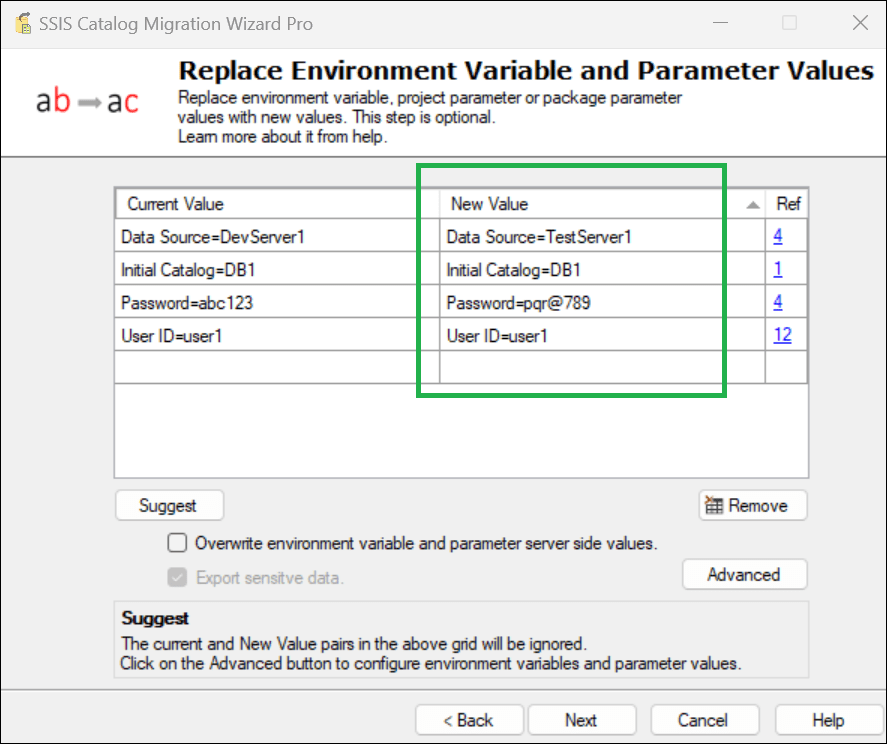
During migration, configure key-value pairs to replace values used by environment variables and SSIS project or package parameters. This is useful when the source and target environments use different server names, database names, file paths, or authentication details. The wizard prepopulates values from the source catalog so you can review and adjust them before migration.
Use Suggest to get recommended replacement values for the selected Replace Scope. Review the suggestions before applying them, and select the Ref column to see which environment variables and parameters are affected by each mapping. This helps you verify that the intended references will be updated.
Example: Updating a SQL Server Connection String #
A common scenario is updating a SQL Server connection string when migrating SSIS packages to a different environment. For example, a development connection might look like this:
Source connection string
Data Source=sql-dev.database.windows.net;Initial Catalog=SourceDB;User ID=OldUser;Password=OldPassword;
If the target environment uses a different server, database, or account, configure the replacement so the connection points to the target environment:
Target connection string
Data Source=sql-test.database.windows.net;Initial Catalog=TargetDB;User ID=NewUser;Password=NewPassword;
Define and review the relevant key-value replacements in the wizard. This can update matching references consistently and reduce manual changes after migration. These sample values are illustrative; use the actual target values and handle credentials securely.
Use Case: Setting Up a Parallel Environment #
Replacement rules are useful when creating a parallel environment for ETL workloads. Connection strings, file paths, database names, and authentication details often differ between development, test, and production. Updating the required values during migration helps packages run against the intended target resources without additional manual edits after migration.
When Replacement Configuration Is Recommended #
Updating environment variables and parameter values is optional when source and target configurations already match. It is recommended whenever those values differ between environments. Reviewing and applying the required replacements before migration can reduce post-migration issues and help ensure packages execute with the correct target configuration.
7. Overwrite Environment Variable Values #
The Overwrite environment variable values option recreates target environment variables and parameter default values based on the source. Existing target environment variable values may be lost or replaced. Leave this disabled if you need to preserve target-specific values.
8. Export Sensitive Data (SCMW Only) #
When exporting to an SCMW file, the Export sensitive data setting includes sensitive information as readable text in the export file. SCMW files are not encrypted. Enable this only when required, and protect the resulting file accordingly.
9. Review and Run #
Review the deployment summary. If the selected items and settings are correct, select Finish to start the migration.

10. Monitor Results #
Review the Result column after execution. Successful items are marked Passed. Warnings and errors appear in the tooltip next to the relevant folder or item. Investigate reported issues before relying on the migrated catalog.

For automation, see Automation. For common questions, see Frequently Asked Questions.