
Last updated: November 10, 2026
Preview means the command-line utility is currently provided as a preview feature. Validate it in a non-production environment before using it for production or unattended deployments. The SRMW command-line utility automates repeatable migrations between supported SSRS Native mode and Power BI Report Server environments. Commands can run manually, from Windows Task Scheduler, or through CI/CD pipelines. Unlike the interactive wizard, the CLI does not present a New/Update review screen or pause for item-by-item confirmation. Existing items at destination paths can be updated during the run; back up important target content before scheduling commands.
Generate Scripts from the Wizard UI #
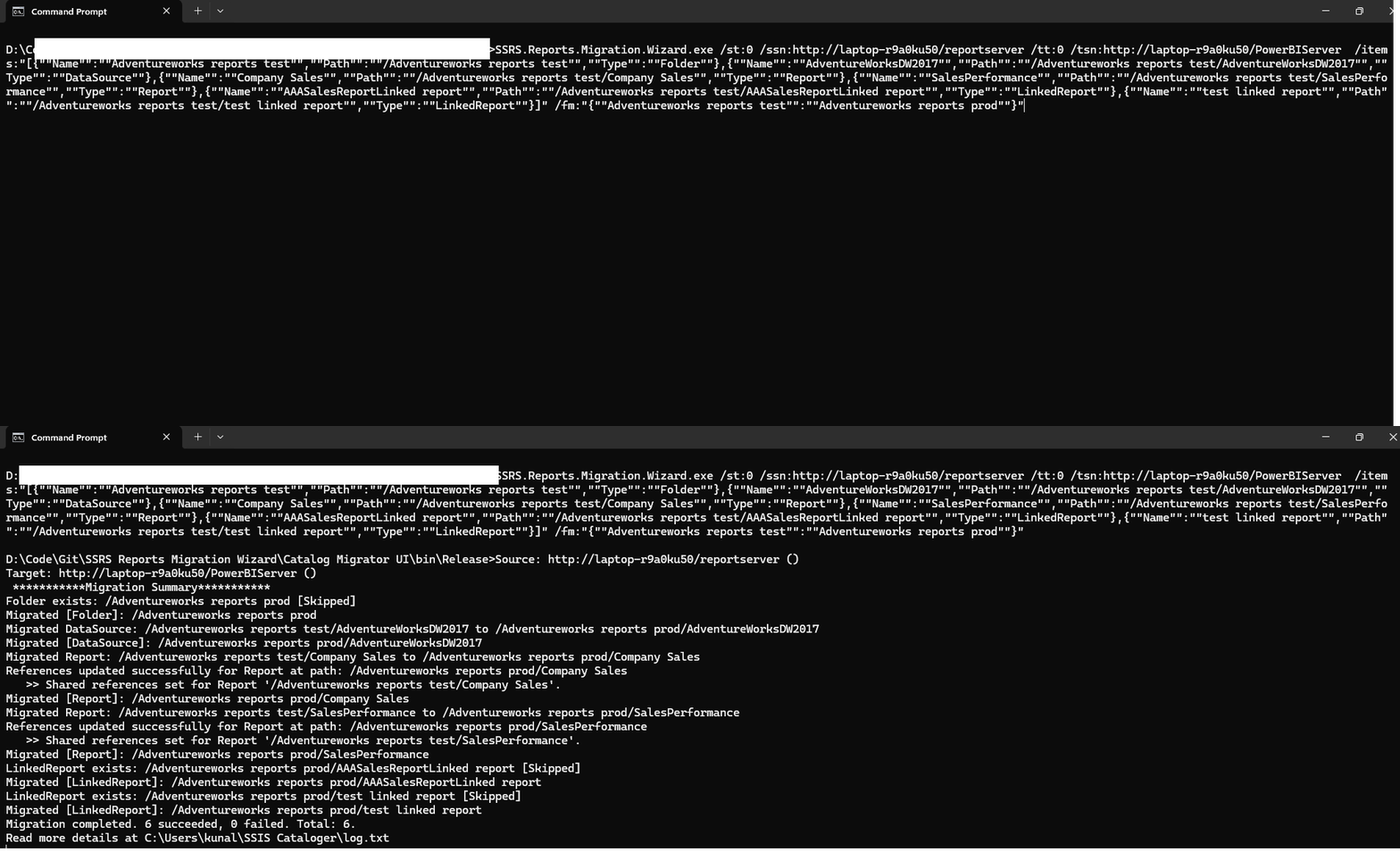
The wizard can generate a command from your current selections. See Getting Started: Script Button for the in-product workflow.
- Script → Copy to Clipboard — Copy the command into a terminal, batch file, scheduler, or pipeline.
- Script → Save to File — Save the generated command as a
.batfile.
Generate a Script from Delta Selection #
If you use Compare Catalog in the interactive wizard and then use its delta-selection button, the wizard updates the current migration-tree selection. When you subsequently use Script → Copy to Clipboard or Script → Save to File, the generated command reflects the items currently selected in the wizard, including the items selected by the delta workflow.
- Run Compare Catalog from the migration selection screen.
- Review the comparison results and use the delta-selection button.
- Return to the migration workflow and review the updated tree selection.
- Open Script and generate the command from the current selections.
- Review the generated command before saving or executing it.
Important: Delta selection is performed in the interactive wizard. The generated script reflects the current selection; the command-line utility does not independently run the UI comparison or calculate a migration delta. If you change the selection after generating a script, generate a new script so it reflects the updated items.
Before You Begin #
- Install and activate the AzureOps installer edition on the machine that will run the command. The default installation folder is
C:\Program Files\AzureOps\SSRS Reports Migration Wizard; use your selected custom folder if you changed it during setup. The Microsoft Store package is a separate distribution and is not documented as a supported CLI installation. - Confirm that both report servers are reachable. Check item-level and system-level role requirements in Prerequisites → Required Permissions.
- Display the available command-line options:
SSRS.Reports.Migration.Wizard.exe /?Option 1 — Add the Executable to PATH #
- Search Windows for Environment Variables.
- Open Edit the system environment variables.
- Click Environment Variables….
- Under System variables, select Path and click Edit….
- Add the folder containing
SSRS.Reports.Migration.Wizard.exe. The default folder isC:\Program Files\AzureOps\SSRS Reports Migration Wizard; use your custom installation folder if you chose one. - Click OK on each dialog. Open a new command prompt for the PATH change to take effect.
Option 2 — Use the Full Executable Path #
"<installation-folder>\SSRS.Reports.Migration.Wizard.exe" /st:0 /ssn:https://SourceServer/ReportServer /tt:0 /tsn:https://TargetServer/ReportServerThe default installer location is
C:\Program Files\AzureOps\SSRS Reports Migration Wizard. Replace the placeholder if you chose a custom installation folder. Keep the executable path in double quotes because the folder name contains spaces.
Parameters #
The following parameters are used by SSRS.Reports.Migration.Wizard.exe.
| Parameter | Usage | Description |
|---|---|---|
st | Mandatory | Source type: 0 = report server; 1 = SRMW file. |
ssn | Required when st=0 | Source report server URL. |
su | Optional | Source username. Accepted formats include DOMAIN\user, UPN (for example, user@domain.com), or a plain username where supported by the server. If omitted, Windows authentication is used. |
sp | Optional | Source password. Required when su is supplied. |
tt | Mandatory | Target type: 0 = report server; 1 = SRMW file. |
tsn | Required when tt=0 | Target report server URL. |
tu | Optional | Target username. Accepted formats include DOMAIN\user, UPN (for example, user@domain.com), or a plain username where supported by the server. If omitted, Windows authentication is used. |
tp | Optional | Target password. Required when tu is supplied. |
srmwfp | Required when st=1 or tt=1 | Full path of the SRMW file. |
items | Optional | JSON array of selected items. If omitted, the source catalog is migrated. |
fm | Optional | Folder-mapping JSON. Generate it with the wizard Script function and preserve its exact structure and quoting; do not hand-invent property names. |
ms | Optional | Migrate subscriptions and shared schedules. Default: false. |
mr | Optional | Migrate item-level role assignments. Default: false. |
mp | Optional | Migrate report parameter default values. Default: false. |
lfd | Optional | Directory for execution logs and errors. |
Limitations and Important Notes #
Data Source Credentials #
The command-line utility migrates data source definitions but does not provide the wizard UI’s interactive Update Data Source Connections step. If the target uses different connection strings or credentials, reconfigure and test target data sources before relying on migrated reports or subscriptions.
Subscription Credentials #
The CLI has no interactive credential-entry screen and does not prompt for or transfer the Windows password used by File Share delivery. After the CLI creates the subscription on the target, configure the destination file-share account credentials in the target SSRS Web Portal and validate the subscription before enabling its schedule. The wizard-only credential screen in Getting Started is not available in CLI mode.
Supported Environments #
- CLI migration supports SSRS Native mode and Power BI Report Server, including SRMW file export/import. Interactive catalog comparison is a wizard UI feature and is not available in the CLI.
- Check system-level permissions for subscription and shared-schedule migration in Prerequisites → Required Permissions. For the shared-schedule HTTP 500 symptom, see Troubleshooting → HTTP 500 Error When Retrieving Shared Schedules.
Items Parameter Format #
The items parameter accepts a JSON array. Each object includes Name, Path, and Type. Supported types include Folder, Report, LinkedReport, DataSource, and DataSet. When embedding JSON in a quoted command-line argument, double the JSON quotation marks as shown below. Generate the exact string with the wizard where possible.
Important: Include the parent folder of each selected item. If the parent folder does not exist on the target, items beneath it may fail to migrate.
SSRS.Reports.Migration.Wizard.exe /st:0 /ssn:https://SourceServer/ReportServer /tt:0 /tsn:https://TargetServer/ReportServer /items:"[{""Name"":""Finance"",""Path"":""/Finance"",""Type"":""Folder""},{""Name"":""FinanceDB"",""Path"":""/Finance/FinanceDB"",""Type"":""DataSource""},{""Name"":""Revenue Report"",""Path"":""/Finance/Revenue Report"",""Type"":""Report""},{""Name"":""Revenue Summary"",""Path"":""/Finance/Revenue Summary"",""Type"":""LinkedReport""}]"Folder mapping: The fm argument contains the folder-mapping JSON generated by the wizard. Copy the exact value from Script → Copy to Clipboard or Save to File; JSON property names and escaping must match the generated command.
SSRS.Reports.Migration.Wizard.exe /st:0 /ssn:https://SourceServer/ReportServer /tt:0 /tsn:https://TargetServer/ReportServer /fm:"{""Sales Staging"":""Sales Production""}"Usage Examples #
The examples below illustrate common command-line scenarios.
Migrate an entire catalog using Windows authentication:
SSRS.Reports.Migration.Wizard.exe /st:0 /ssn:https://SourceServer/ReportServer /tt:0 /tsn:https://TargetServer/ReportServerMigrate with explicit source and target credentials:
SSRS.Reports.Migration.Wizard.exe /st:0 /ssn:https://SourceServer/ReportServer /su:DOMAIN\SourceUser /sp:<source_password> /tt:0 /tsn:https://TargetServer/ReportServer /tu:DOMAIN\TargetUser /tp:<target_password>Export from a report server to an SRMW file:
SSRS.Reports.Migration.Wizard.exe /st:0 /ssn:https://SourceServer/ReportServer /tt:1 /srmwfp:"D:\Exports\Reports.srmw"Import an SRMW file to a report server:
SSRS.Reports.Migration.Wizard.exe /st:1 /srmwfp:"D:\Exports\Reports.srmw" /tt:0 /tsn:https://TargetServer/ReportServerMigrate from SSRS to Power BI Report Server:
SSRS.Reports.Migration.Wizard.exe /st:0 /ssn:https://SourceServer/ReportServer /tt:0 /tsn:https://PBIServer/PowerBIReportServer /lfd:"D:\Logs"Run a scheduled migration from a batch file:
@echo off
REM Scheduled phase: migrate catalog content only.
REM Do not add /ms:true until target data sources have been checked and validated.
SSRS.Reports.Migration.Wizard.exe /st:0 /ssn:https://SourceServer/ReportServer /tt:0 /tsn:https://TargetServer/ReportServer /lfd:"D:\Logs\Nightly"
PowerShell and Pipeline Examples #
Run automation on a Windows machine or self-hosted Windows build agent with the AzureOps installer edition installed and activated. Confirm that your license terms permit the intended build-agent and unattended use; do not assume one activation can be shared by concurrent agents. Store secrets in the pipeline secret store, not in source control or scripts.
$exe = "C:\Program Files\AzureOps\SSRS Reports Migration Wizard\SSRS.Reports.Migration.Wizard.exe"
$args = @("/st:0", "/ssn:https://SourceServer/ReportServer", "/tt:0", "/tsn:https://TargetServer/ReportServer", '/lfd:D:\Logs\Pipeline')
$p = Start-Process -FilePath $exe -ArgumentList $args -Wait -PassThru
if ($p.ExitCode -ne 0) { throw "SRMW failed with exit code $($p.ExitCode)" }
In a CI/CD pipeline, use a Windows agent that can reach both report servers. Publish the protected log directory as a pipeline artifact and configure the job to fail on a non-zero process exit code. Review logs for item-level failures or partial completion.
Run optional migration tasks only after validation:
SSRS.Reports.Migration.Wizard.exe /st:0 /ssn:https://SourceServer/ReportServer /tt:0 /tsn:https://TargetServer/ReportServer /ms:true /mr:true /mp:true /lfd:"D:\Logs\Optional"Run this as a separate operation after verifying target data-source connections and confirming the required system-level permissions. See Prerequisites for the ms permission requirements.
Exit Codes #
| Code | Meaning |
|---|---|
| 0 | Success |
| -1 | Failure |
| -2 | Fatal error during initialization |
The documented exit-code list does not define a separate numeric partial-success code. A run may still require item-level review; inspect the log and migration results even when the process reports success.
Security note: Avoid placing passwords directly in command-line arguments such as
/spand/tp, because they may be visible in process listings or shell history. Prefer Windows Authentication where possible, and protect scripts, logs, and SRMW files that may contain sensitive information.