Quick answer: In Power BI Desktop, select Get data > Azure Analysis Services database, enter the Azure Analysis Services server and database, and choose Connect live or Import. Power BI supports both connection modes for Azure Analysis Services.
Prerequisites:
1. Install the latest Power BI Desktop.
2. Your Microsoft Entra ID account must have permission to access the Azure Analysis Services model.
Connect to Azure Analysis Services from Power BI Desktop
1. Open Power BI Desktop.
2. Select Get data from the Home ribbon.
3. Search for and select Azure Analysis Services database.

4. Enter the Azure Analysis Services server name, for example asazure://westeurope.asazure.windows.net/youraasname. Choose Connect live if you want Power BI to connect directly to the semantic model. Power BI Desktop also supports Import.

5. Sign in with the appropriate Microsoft Entra credentials if prompted, then select the database and click OK.
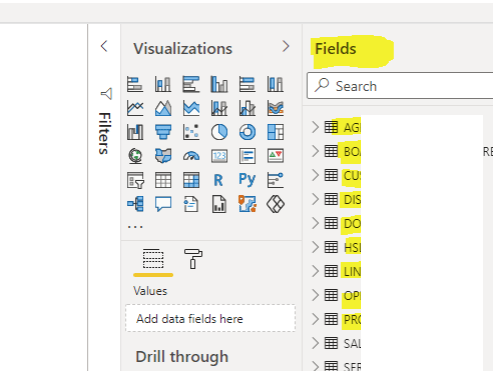
6. Power BI loads the available model. With a live connection, Power BI connects directly to the semantic model rather than importing its data into the report.
Pro tips:
1. Azure Analysis Services supports Microsoft Entra authentication options, including Microsoft Entra ID with MFA.
2. Refer to this guide to connect to Azure Analysis Services from SSMS.
See more

Visual Studio Marketplace
SSIS Catalog Migration Wizard
Extend Visual Studio with an easy way to migrate SSIS Catalog projects.

Kunal Rathi
With over 15 years of experience in data engineering and analytics, I've assisted countless clients in gaining valuable insights from their data. As a dedicated supporter of Data, Cloud and DevOps, I'm excited to connect with individuals who share my passion for this field. If my work resonates with you, we can talk and collaborate.