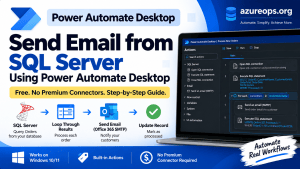
Power Automate Desktop (PAD) comes free with Windows 10 and 11, and it is one of the most underused tools sitting on most people’s machines. While Power Automate cloud flows push you toward premium connectors for almost anything useful, SQL Server, Outlook, and dozens of others, PAD ships with native actions that do the same job locally, without a premium license attached. That is what makes it possible to send email from SQL Server using Power Automate Desktop without paying for a premium connector at all.
That means you can connect to a database, loop through data, manipulate files, control applications, and send email, all using standard actions that are included in the free desktop client. In this article, I will walk through a real automation I built using this approach: pulling Orders data from a local SQL Server table, looping through each row, and sending a native email through an Office 365 account for every order, entirely free of premium connectors.
How to send Email from SQL Server using Power automate Desktop
Most Power Automate tutorials assume you are already working with cloud flows and premium connectors. For a lot of SQL Server environments, especially smaller teams or anything running mostly on premises, that is overkill for something as simple as sending an email when a new order lands in a table. Power Automate Desktop gives you:
- A native SQL Server connection action that works with local or remote SQL Server instances
- A native loop through data table rows action
- A native Send an email action that talks directly to an SMTP server, including Office 365’s SMTP endpoint, without going through the Office 365 Outlook connector
No premium tier, no per flow connector cost. Just the free Power Automate Desktop client and a scheduled task.
What you Need before you Start
- Power Automate Desktop installed on a Windows machine
- Access to the SQL Server instance where your Orders table lives
- An Office 365 mailbox you can use for sending (with SMTP AUTH enabled on the tenant)
Demo: Building the Orders Email Flow
Here is the flow I built using this pattern, broken down step by step. It sends one email per new order, but the same structure applies regardless of what table or trigger condition you are working with. You can follow along with these instructions in your own environment.

1. Open the SQL Connection
- From the Actions pane, search for Open SQL connection and drag it onto the canvas.
- Enter your connection string, pointing at the local or remote SQL Server instance and the database that holds your Orders table.
- Choose Windows or SQL authentication depending on how your instance is set up.
This step runs entirely on the machine PAD is installed on, so there is no gateway or cloud connector required.
(Screenshot: Open SQL connection action with the connection string configured)
2. Execute the Query
- Add an Execute SQL statement action right after the connection step.
- Use a query that pulls only the rows you need to act on, for example orders that have not been processed yet:
SELECT OrderID, CustomerName, CustomerEmail, OrderTotal, OrderDate
FROM Orders
WHERE Processed = 0
- This returns a data table variable that you will loop through next.

3. Loop Through the Results
- Add a For each action and set it to loop over the data table returned in the previous step.
- Each iteration of the loop represents one order, and every column, customer name, email address, order total, becomes a value you can reference inside the loop.

4. Send the Native Email
- Inside the loop, add the Send an email action. Use the generic SMTP action, not the Outlook specific one.
- Configure it for Office 365:
- SMTP Server:
smtp.office365.com - Port:
587 - Enable SSL: On
- Authentication: your O365 account credentials
- SMTP Server:
- Map the subject and body to the current row’s values so each email is built dynamically from that order.

5. Mark the Row as Processed
- After the email sends successfully, add another Execute SQL statement action to flag that row so it does not get emailed again next time the flow runs:
UPDATE Orders SET Processed = 1 WHERE OrderID = %CurrentItem.OrderID%

Why this is Actually Free
To be precise about the licensing, since that is the whole point of doing it this way:
- Power Automate Desktop is included free with Windows 10 and 11 for attended automation. For unattended runs you need a Power Automate per flow or per user plan, but no premium connector add on.
- The SQL Server and Send an email actions inside PAD are standard actions, not premium connectors. They connect directly, SQL over your connection string and email over SMTP, instead of routing through a licensed API connector.
- In a cloud flow, both the SQL Server action and the Office 365 Outlook send email action are premium connectors, each requiring a premium license tier on top of your base Power Automate license.
If your workflow can run on a machine that stays on and has access to the SQL Server instance, and it does not need real time cloud triggering, PAD is usually the cheaper and simpler option.
Scheduling the Flow
Once the flow works end to end, you have two easy options for running it automatically:
- Windows Task Scheduler, triggering the flow through
PAD.Console.Host.exefrom the command line. - A scheduled cloud flow that calls an unattended desktop flow, if you want a lightweight cloud trigger without touching the SQL or Outlook premium connectors.
FAQ
Do I need a premium connector to send email from SQL Server in Power Automate? No, not if you build it in Power Automate Desktop. The premium requirement only applies to the SQL Server and Office 365 Outlook connectors used in cloud flows. PAD’s native SQL and email actions avoid that entirely.
Can this run without anyone signed in? Yes, as long as you set it up as an unattended flow, which needs a Power Automate per user or per flow plan, but still no premium connector add on.
Does this work with a remote SQL Server instance, not just local? Yes. The Open SQL connection action works the same way whether the database is on the same machine or reachable over the network, as long as the connection string and credentials are correct.
Where this Fits into a Bigger Workflow
This same pattern, open connection, query, loop, send email, works for a lot more than order confirmations. Low stock alerts, daily report distribution, SLA breach notifications, anything table driven that you would otherwise be tempted to buy a premium connector for. Once it is working for one table, copying it for another is mostly a new query and a few field mappings.
If you manage SQL Server infrastructure day to day and want to keep more of this kind of automation off premium licensing, this pattern is worth having in your toolkit.
Pro tips:
1. Office 365 SMTP has sending limits, typically around 10,000 messages a day and 30 per minute per mailbox on standard licenses. If your order volume is high, add a short delay inside the loop or batch your emails instead of sending one per row.
2. Wrap the send email step in an On Block Error handler so one bad email address or a temporary SMTP hiccup does not stop the whole run. Log the failure and move to the next row.
3. Store the O365 password using PAD’s built in credential manager instead of a plain text variable, especially if this runs unattended on a shared machine.
4. Test against a staging table or a narrow WHERE clause first. A loop with a live SMTP send action will happily email every row if your filter is wrong.
5. Keep the update statement inside the same loop iteration as the send step, right after it, so a failed send does not accidentally get marked as processed.
6. Follow this post if you want to automate email sending using logic apps.
See more

Kunal Rathi
With over 15 years of experience in data engineering and analytics, I've assisted countless clients in gaining valuable insights from their data. As a dedicated supporter of Data, Cloud and DevOps, I'm excited to connect with individuals who share my passion for this field. If my work resonates with you, we can talk and collaborate.