Quick answer: Power BI row-level security (RLS) restricts which rows a user can see in a semantic model. Define the roles and DAX filters in Power BI Desktop, publish the model, add users or supported groups to the roles in Power BI Service, and test the roles before sharing the report. RLS is enforced for users with Viewer/read access; workspace Admin, Member, and Contributor roles aren’t restricted by RLS in the same way.
What is row-level security in Power BI?
RLS filters semantic-model data based on a security role. For example, a regional sales role can restrict a user to one region, while dynamic RLS can use the signed-in user’s identity to determine which rows they can see.
RLS is different from report or workspace permissions. Permissions determine whether a user can access the content; RLS determines which data rows that user can retrieve from the semantic model.
How to implement RLS in Power BI Desktop
1. Open the Power BI report in Power BI Desktop.
2. On the Modeling tab, select Manage roles.
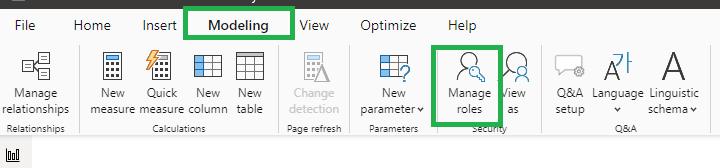
3. Select New, enter a role name, select the table to filter, and define the filter condition. You can use the default editor or switch to the DAX editor.

Static RLS example
To restrict a role to one region, you can use a filter such as:
[Region] = "West"Dynamic RLS example
If an Employee table contains each user’s UPN and the table is related correctly to the tables you want to filter, use:
[Email] = USERPRINCIPALNAME()In Power BI Service, USERPRINCIPALNAME() returns the signed-in user’s UPN. Dynamic RLS lets one role return different data for different users.
Available on Microsoft Store
SSRS Reports Migration Wizard
A simple Windows tool for migrating SSRS reports, data sources, and related configurations between report servers.
Test RLS in Power BI Desktop
Before publishing, use Modeling > View as to test each role. You can also test a specific user context where supported.

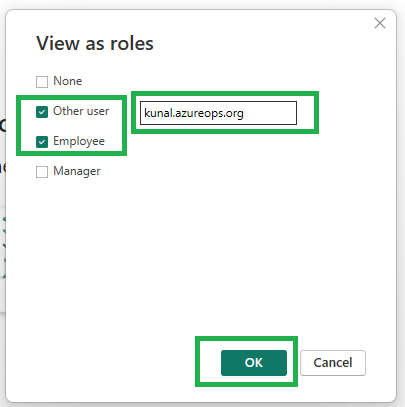
Check that the report shows only the rows expected for the selected role or user context. Then publish the semantic model and report to Power BI Service.
Add users to RLS roles in Power BI Service
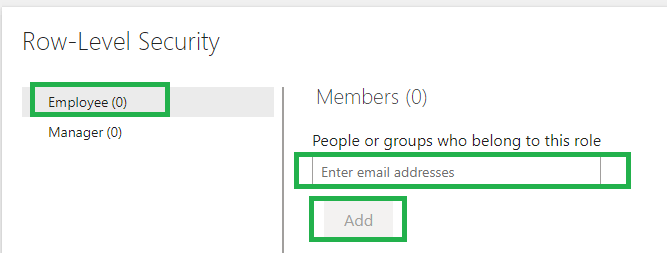
After publishing, open the workspace, select the semantic model’s More options (…), and choose Security. Select the role and add the appropriate users or supported groups.

Search for the user or group, add it to the role, and save the changes.
Make sure RLS is actually enforced
For report consumers, assign Viewer/read access to the workspace or semantic model. Users with workspace Admin, Member, or Contributor roles can access and edit the semantic model and aren’t restricted by RLS in the same way.
If you share a report through an app, also verify the user’s permissions on the underlying semantic model. RLS depends on the user’s effective permissions, not simply whether the report is visible.
Test RLS in Power BI Service
In Power BI Service, open the semantic model’s Security page, select the role’s More options (…), and choose Test as role. Verify that the report shows only the expected data. For dynamic RLS, check the identity shown in the Now viewing as header.
For DirectQuery models with SSO enabled, Test as role isn’t supported. In that case, validate RLS by signing in as an actual Viewer user.
For a detailed walkthrough of testing RLS in the Power BI Service, see How to Test RLS in Power BI Service.


Common RLS problems
- User sees all data: check the user’s effective permission. Workspace Admin, Member, or Contributor access bypasses the normal Viewer RLS behavior.
- User sees no data: verify the user’s UPN matches the mapping table and that active model relationships propagate the filter.
- Dynamic RLS returns unexpected data: verify the DAX expression, relationship direction, and mapping-table values.
- Test as role doesn’t work: check whether the model uses DirectQuery with SSO.
- Multiple roles: role memberships are additive, so a user in multiple roles can see the combined result of those roles.
Pro tips:
1. Prefer security groups for role membership when practical; manage group membership in Microsoft Entra ID.
2. Keep RLS roles simple and verify that filters propagate through active relationships.
3. Test RLS in Desktop before publishing and again in the Service with realistic Viewer permissions.
4. RLS can affect query performance, so use Performance Analyzer to compare report performance with and without RLS when needed.
Summary
Power BI RLS is implemented by defining roles and filters, publishing the semantic model, assigning users or supported groups to roles, and validating the results. The most important security check is to ensure consumers have permissions that cause RLS to be enforced, rather than elevated workspace permissions that bypass the normal RLS behavior.
See more

Visual Studio Marketplace
SSIS Catalog Migration Wizard
Extend Visual Studio with an easy way to migrate SSIS Catalog projects.

Kunal Rathi
With over 15 years of experience in data engineering and analytics, I've assisted countless clients in gaining valuable insights from their data. As a dedicated supporter of Data, Cloud and DevOps, I'm excited to connect with individuals who share my passion for this field. If my work resonates with you, we can talk and collaborate.