If an Azure Analysis Services model is missing from SSMS or Power BI, first verify the server and your administrator access. The model may still exist but be inaccessible because of incorrect server details, missing permissions, or a deployment to another server.
Quick answer: Check the Azure Analysis Services server name, verify Analysis Services Admins in the Azure portal, then reconnect with SSMS and check the Databases node.
Why is an Azure Analysis Services model missing?
- Wrong server: SSMS, Power BI, or Visual Studio may be using a different server.
- Administrator access changed: Your Microsoft Entra account or security group may no longer be a server administrator.
- Model permissions: The model exists, but the user does not have the required database role.
- Different deployment target: The model may have been deployed to another server or database.
- Model deleted: The database may actually have been removed from the server.
How to fix Azure Analysis Services Model Missing
1. Verify the server
In the Azure portal, open the Azure Analysis Services resource and copy the Server name. Make sure it matches the server configured in SSMS, Power BI, or Visual Studio.
2. Check Analysis Services Admins
Open the server in the Azure portal and check its Administrators setting. Make sure your Microsoft Entra account or an appropriate security group is configured as a server administrator. If the previous administrator account was deleted or is unavailable, add another administrator.

3. Check the model in SSMS
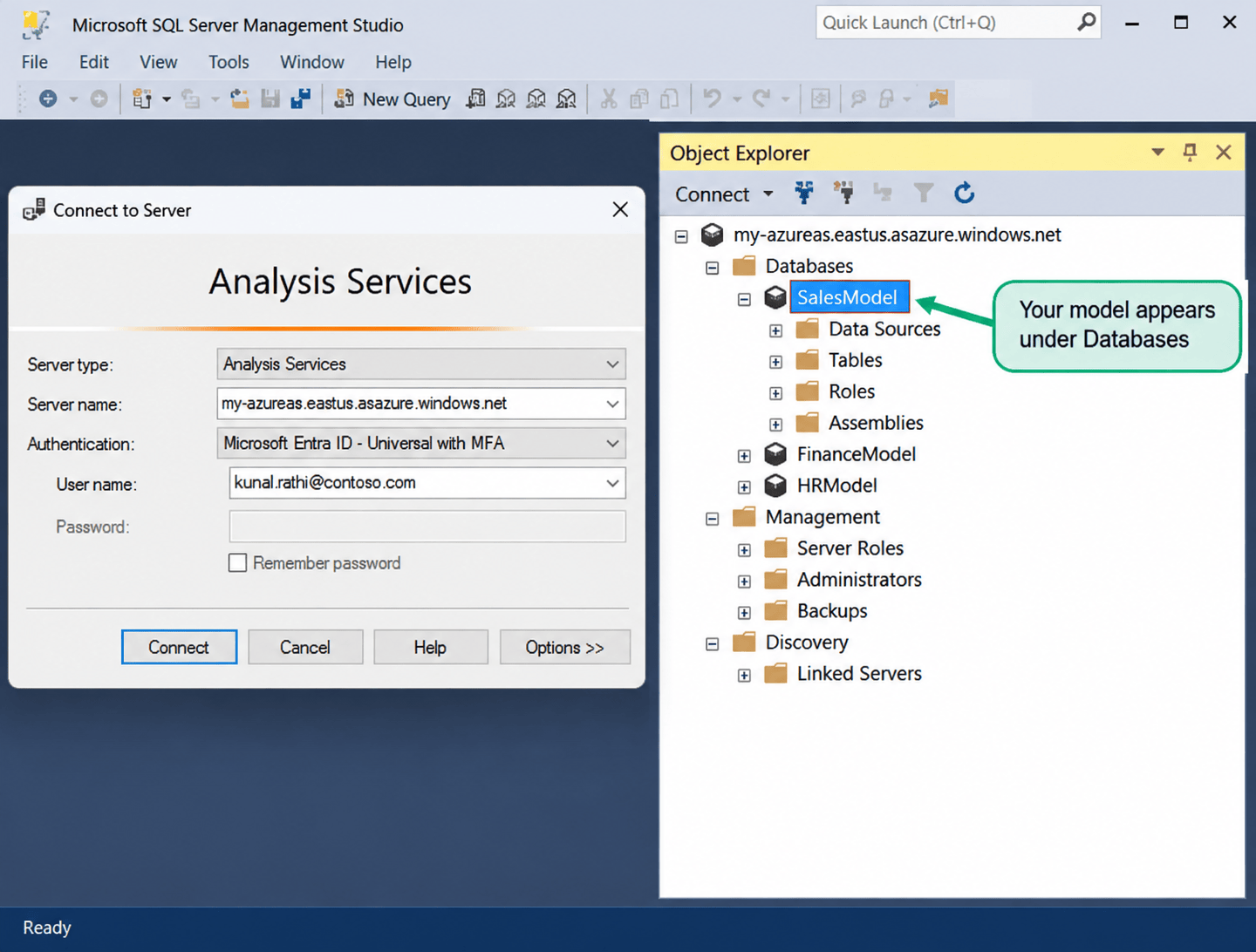
Connect to the correct server in SQL Server Management Studio (SSMS) using Microsoft Entra authentication. Expand the server and check the Databases node.
If the model appears when connected as a server administrator, the issue was related to access rather than the model being deleted.
4. Check model database roles
If the model exists but a user cannot access it, check the model’s database roles. Azure Analysis Services uses database roles to control access to individual models. Users who need to query a model from Power BI or Excel generally need a role with Read permission.
5. Check the deployment target
If the model is not visible even to an administrator, check the Visual Studio deployment settings. Verify the Server and Database properties and compare them with the server and database you are checking in SSMS.
If the model was actually deleted
If the model is still missing after checking the server, administrator access, permissions, and deployment target, verify whether the database was deleted. A deleted model must be restored from an available backup or redeployed from the source model project.
Pro tips: Keep more than one trusted administrator or an appropriate Microsoft Entra security group assigned to the Azure Analysis Services server so that a single account change does not leave the team without administrative access.
See more

Visual Studio Marketplace
SSIS Catalog Migration Wizard
Extend Visual Studio with an easy way to migrate SSIS Catalog projects.

Kunal Rathi
With over 15 years of experience in data engineering and analytics, I've assisted countless clients in gaining valuable insights from their data. As a dedicated supporter of Data, Cloud and DevOps, I'm excited to connect with individuals who share my passion for this field. If my work resonates with you, we can talk and collaborate.