
Before you start: Make sure the migration machine can reach both the source and target report servers and that your account has the permissions required for the migration features you plan to use. The wizard supports SSRS Native mode and Power BI Report Server; SharePoint mode is not supported.
System Requirements #
- Windows: Windows 10 or later recommended, or Windows Server.
- .NET Framework: 4.7.2 or later.
- Report-server access: Connectivity to both the source and target SSRS / Power BI Report Server.
- Subscriptions: SQL Server Agent must be running on the SQL Server instance hosting the target ReportServer database when migrating and executing scheduled subscriptions.
Network and Report Server URL #
The migration machine must be able to reach the configured report-server web-service endpoint. Your environment may use HTTP or HTTPS and a custom port.
- Example web-service URL:
http://<server-name>/ReportServer - Example portal URL:
http://<server-name>/Reports - Make sure firewalls or proxies allow access to the configured endpoints.
Find the Report Server Web Service URL #
On the machine where SSRS is installed, open Report Server Configuration Manager, connect to the SSRS instance, and select Web Service URL. Copy the configured URL shown there.
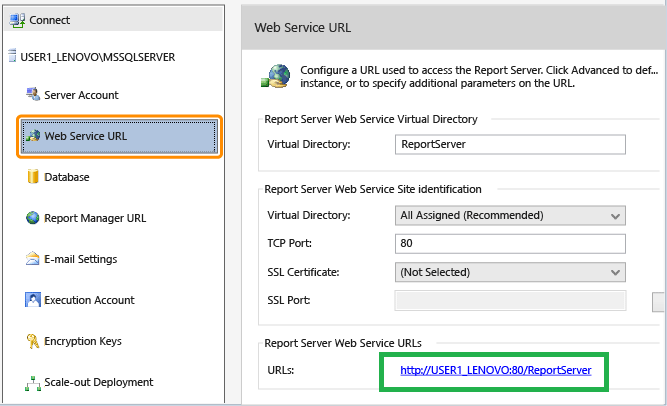
If you do not have access to Configuration Manager, try opening http://<server-name>/reportserver in a browser. For HTTPS environments, use the configured https:// URL.
The URL can also be checked in RSReportServer.config under the Reporting Services installation directory by looking for the <UrlRoot> setting, when present.
Required Permissions #
The permissions required depend on what you are migrating. SSRS separates item-level permissions from site-level permissions.
| Migration task | Source | Target |
|---|---|---|
| Reports, folders, datasets, data sources | Browser | Publisher |
| Standard or data-driven subscriptions | Browser + System User | Content Manager |
| Shared schedules | System User with required schedule permissions | System Administrator |
| Roles and permissions | System Administrator | System Administrator |
| Linked reports | Browser on the parent report folder | Publisher |
| Full migration | Content Manager + System Administrator | Content Manager + System Administrator |
If access is restricted to specific folders, the account must have the required item-level role on those folders. If folder permission inheritance has been disabled, check the affected subfolders as well.
Authentication and Account Access #
- Use an account that is trusted and authorized by the report-server environment.
- Make sure the account is valid and its password has not expired.
- Test access by opening the Report Server URL directly in a browser from the migration machine.
- For cross-domain migrations, confirm that the account is trusted and authorized on the relevant report server.
Grant Access When Required #
If the migration account does not have the required permissions, grant access from the SSRS Web Portal.
Item-Level Permissions #
- Open
http://<server-name>/Reports. - Open the Home folder or the folder you need to migrate.
- Select Manage → Security.
- Add the required group or user and assign the appropriate item-level role.
Site-Level Permissions #
- Open the SSRS Web Portal and select Site Settings → Security.
- Add the required group or user.
- Assign System User for supported subscription and shared-schedule operations, or System Administrator when the migration requires system-level administration such as role migration.
Tip: If you encounter a permission-related error, first compare the migration task with the permissions table above. For a specific error, see the Troubleshooting Guide.