
Skip to content
AzureOps
Blog
Products
SSIS Catalog Migration Wizard
Migrate your SSISDB catalog
SSRS Reports Migration Wizard
Move SSRS reports between servers
Azure Elastic Jobs Manager
Manage Elastic Jobs without the portal
About Us
Get Support
Blog
SSIS Catalog Migration Wizard SSRS Reports Migration Wizard Azure Elastic Jobs Manager
About Us Get Support

SSRS Reports Migration Wizard

9
  • Home
  • Prerequisites
  • Installation and Activation
  • Getting Started
  • Automation (Preview)
  • Troubleshooting Guide
  • Security & Compliance
  • Demo
  • Release Notes
View Categories
  • Docs
  • Docs
  • SSRS Reports Migration Wizard

Prerequisites

Before you start: Make sure the migration machine can reach both the source and target report servers and that your account has the permissions required for the migration features you plan to use. The wizard supports SSRS Native mode and Power BI Report Server; SharePoint mode is not supported.

System Requirements #

  • Windows: Windows 10 or later recommended, or Windows Server.
  • .NET Framework: 4.7.2 or later.
  • Report-server access: Connectivity to both the source and target SSRS / Power BI Report Server.
  • Subscriptions: SQL Server Agent must be running on the SQL Server instance hosting the target ReportServer database when migrating and executing scheduled subscriptions.

Network and Report Server URL #

The migration machine must be able to reach the configured report-server web-service endpoint. Your environment may use HTTP or HTTPS and a custom port.

  • Example web-service URL: http://<server-name>/ReportServer
  • Example portal URL: http://<server-name>/Reports
  • Make sure firewalls or proxies allow access to the configured endpoints.

Find the Report Server Web Service URL #

On the machine where SSRS is installed, open Report Server Configuration Manager, connect to the SSRS instance, and select Web Service URL. Copy the configured URL shown there.
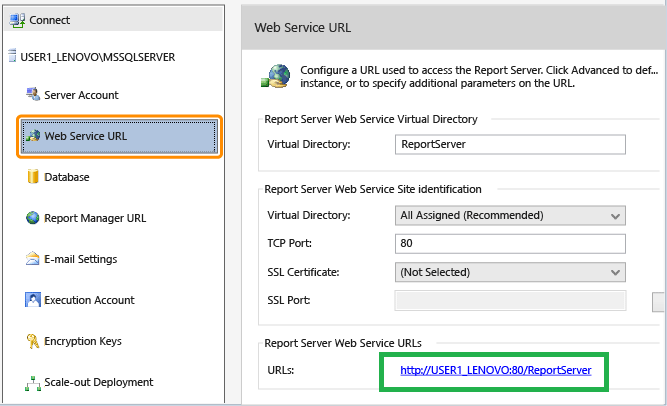
Report Server Configuration Manager showing the SSRS Web Service URL

If you do not have access to Configuration Manager, try opening http://<server-name>/reportserver in a browser. For HTTPS environments, use the configured https:// URL.

The URL can also be checked in RSReportServer.config under the Reporting Services installation directory by looking for the <UrlRoot> setting, when present.

Required Permissions #

The permissions required depend on what you are migrating. SSRS separates item-level permissions from site-level permissions.

Migration taskSourceTarget
Reports, folders, datasets, data sourcesBrowserPublisher
Standard or data-driven subscriptionsBrowser + System UserContent Manager
Shared schedulesSystem User with required schedule permissionsSystem Administrator
Roles and permissionsSystem AdministratorSystem Administrator
Linked reportsBrowser on the parent report folderPublisher
Full migrationContent Manager + System AdministratorContent Manager + System Administrator

If access is restricted to specific folders, the account must have the required item-level role on those folders. If folder permission inheritance has been disabled, check the affected subfolders as well.

Authentication and Account Access #

  • Use an account that is trusted and authorized by the report-server environment.
  • Make sure the account is valid and its password has not expired.
  • Test access by opening the Report Server URL directly in a browser from the migration machine.
  • For cross-domain migrations, confirm that the account is trusted and authorized on the relevant report server.

Grant Access When Required #

If the migration account does not have the required permissions, grant access from the SSRS Web Portal.

Item-Level Permissions #

  1. Open http://<server-name>/Reports.
  2. Open the Home folder or the folder you need to migrate.
  3. Select Manage → Security.
  4. Add the required group or user and assign the appropriate item-level role.

Site-Level Permissions #

  1. Open the SSRS Web Portal and select Site Settings → Security.
  2. Add the required group or user.
  3. Assign System User for supported subscription and shared-schedule operations, or System Administrator when the migration requires system-level administration such as role migration.

Tip: If you encounter a permission-related error, first compare the migration task with the permissions table above. For a specific error, see the Troubleshooting Guide.

Related #

HomeInstallation and Activation
Table of Contents
  • System Requirements
  • Network and Report Server URL
    • Find the Report Server Web Service URL
  • Required Permissions
  • Authentication and Account Access
  • Grant Access When Required
    • Item-Level Permissions
    • Site-Level Permissions
AzureOps

SQL Server & Azure migration tools built by DBAs, for DBAs. Trusted by enterprise teams worldwide.

About Us
About AzureOps Blog Reseller Partners
Products
SSIS Catalog Migration Wizard SSRS Reports Migration Wizard Azure Elastic Jobs Manager Visual Studio Marketplace
Contact Us
Product Support
Email Us
© 2026 AzureOps Solutions. All rights reserved.
Privacy Policy Terms & Conditions Refund Policy
We use cookies on our website to give you the most relevant experience by remembering your preferences and repeat visits. By clicking “Accept All”, you consent to the use of ALL the cookies. However, you may visit "Cookie Settings" to provide a controlled consent.
Cookie SettingsAccept All
Manage consent

Privacy Overview

This website uses cookies to improve your experience while you navigate through the website. Out of these, the cookies that are categorized as necessary are stored on your browser as they are essential for the working of basic functionalities of the website. We also use third-party cookies that help us analyze and understand how you use this website. These cookies will be stored in your browser only with your consent. You also have the option to opt-out of these cookies. But opting out of some of these cookies may affect your browsing experience.
Necessary
Always Enabled
Necessary cookies are absolutely essential for the website to function properly. These cookies ensure basic functionalities and security features of the website, anonymously.
CookieDurationDescription
cookielawinfo-checkbox-analytics11 monthsThis cookie is set by GDPR Cookie Consent plugin. The cookie is used to store the user consent for the cookies in the category "Analytics".
cookielawinfo-checkbox-functional11 monthsThe cookie is set by GDPR cookie consent to record the user consent for the cookies in the category "Functional".
cookielawinfo-checkbox-necessary11 monthsThis cookie is set by GDPR Cookie Consent plugin. The cookies is used to store the user consent for the cookies in the category "Necessary".
cookielawinfo-checkbox-others11 monthsThis cookie is set by GDPR Cookie Consent plugin. The cookie is used to store the user consent for the cookies in the category "Other.
cookielawinfo-checkbox-performance11 monthsThis cookie is set by GDPR Cookie Consent plugin. The cookie is used to store the user consent for the cookies in the category "Performance".
viewed_cookie_policy11 monthsThe cookie is set by the GDPR Cookie Consent plugin and is used to store whether or not user has consented to the use of cookies. It does not store any personal data.
Functional
Functional cookies help to perform certain functionalities like sharing the content of the website on social media platforms, collect feedbacks, and other third-party features.
Performance
Performance cookies are used to understand and analyze the key performance indexes of the website which helps in delivering a better user experience for the visitors.
Analytics
Analytical cookies are used to understand how visitors interact with the website. These cookies help provide information on metrics the number of visitors, bounce rate, traffic source, etc.
Advertisement
Advertisement cookies are used to provide visitors with relevant ads and marketing campaigns. These cookies track visitors across websites and collect information to provide customized ads.
Others
Other uncategorized cookies are those that are being analyzed and have not been classified into a category as yet.
SAVE & ACCEPT