
The SSRS Reports Migration Wizard (SRMW) command-line utility automates repeatable migrations between supported SSRS Native mode and Power BI Report Server environments. Generated scripts can run manually, from Windows Task Scheduler, or through CI/CD pipelines.
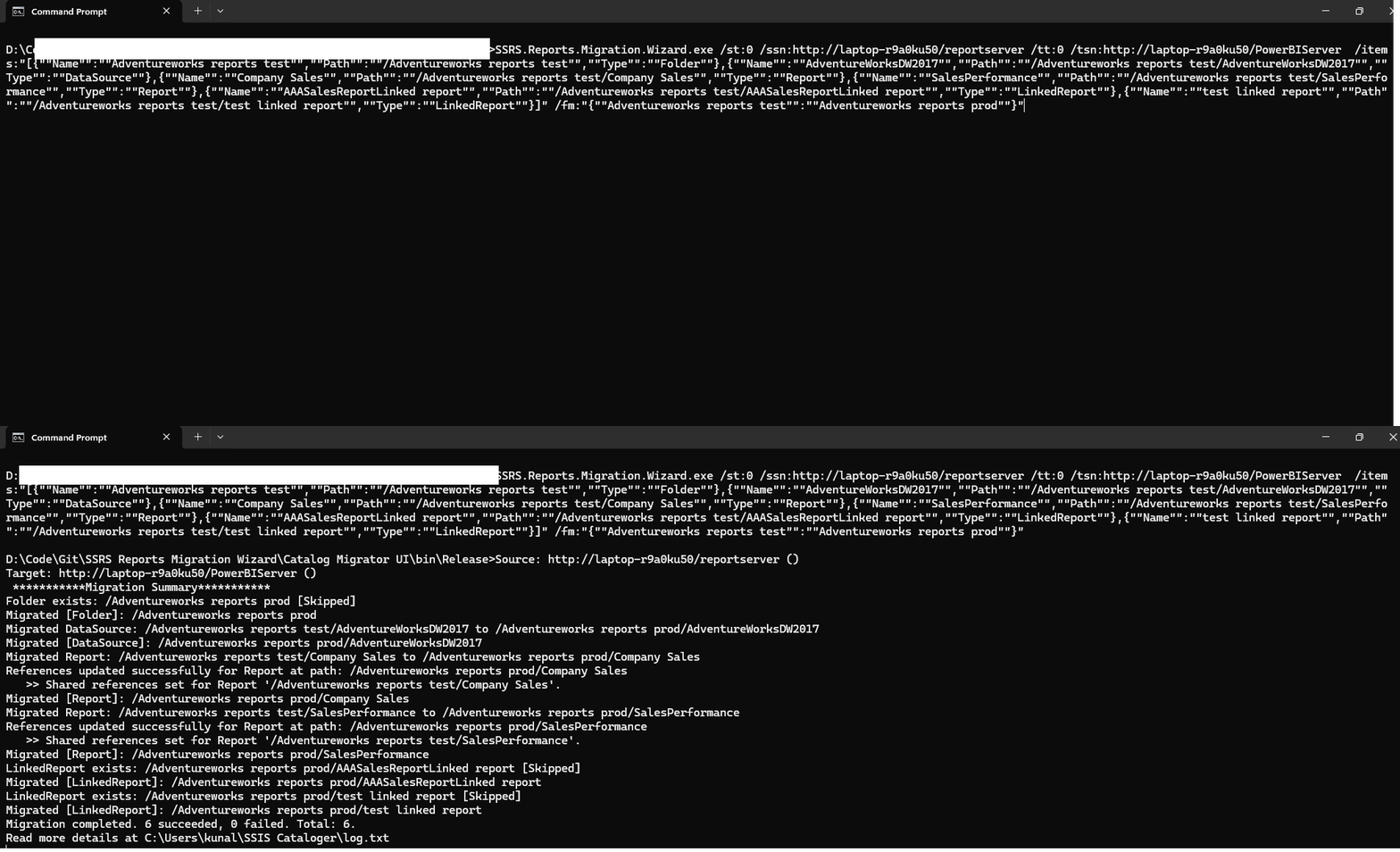
Generate Scripts from the Wizard UI #
The easiest way to create a valid command is to use Script on the wizard’s Review and Confirm screen. SRMW generates the command from your current selections.
- Script → Copy to Clipboard — Copy the command into a terminal, batch file, scheduler, or pipeline.
- Script → Save to File — Save the generated command as a
.batfile.
See Getting Started → Review and Confirm for the wizard workflow.
Before You Begin #
- Install and activate SRMW on the machine that will run the command.
- Confirm the source and target report servers are reachable and the account has the required permissions.
- Open a new command prompt after installation or PATH changes.
- Display the available command-line options:
SSRS.Reports.Migration.Wizard.exe /?Option 1 — Add the Executable to PATH #
- Search Windows for Environment Variables.
- Open Edit the system environment variables.
- Click Environment Variables….
- Under System variables, select Path and click Edit….
- Add the folder containing
SSRS.Reports.Migration.Wizard.exe, for exampleC:\Program Files\AzureOps\SSRS Reports Migration Wizard. - Click OK on each dialog and open a new command prompt.
Option 2 — Use the Full Executable Path #
"C:\Program Files\AzureOps\SSRS Reports Migration Wizard\SSRS.Reports.Migration.Wizard.exe" /st:0 /ssn:http://SourceServer/ReportServer /tt:0 /tsn:http://TargetServer/ReportServerIf the installation path contains spaces, enclose the full path in double quotes.
Parameters #
The following parameters are used by SSRS.Reports.Migration.Wizard.exe.
| Parameter | Usage | Description |
|---|---|---|
st | Mandatory | Source type: 0 = report server; 1 = SRMW file. |
ssn | Required when st=0 | Source report server URL. |
su | Optional | Source username. If omitted, Windows authentication is used. |
sp | Optional | Source password. Required when su is supplied. |
tt | Mandatory | Target type: 0 = report server; 1 = SRMW file. |
tsn | Required when tt=0 | Target report server URL. |
tu | Optional | Target username. If omitted, Windows authentication is used. |
tp | Optional | Target password. Required when tu is supplied. |
srmwfp | Required when st=1 or tt=1 | Full path of the SRMW file. |
items | Optional | JSON array of selected items. If omitted, the source catalog is migrated. |
fm | Optional | Source-to-target folder mapping in JSON format. Folder renaming is applied automatically. |
ms | Optional | Migrate subscriptions and shared schedules. Default: false. |
mr | Optional | Migrate item-level role assignments. Default: false. |
mp | Optional | Migrate report parameter default values. Default: false. |
lfd | Optional | Directory for execution logs and errors. |
Limitations and Important Notes #
Data Source Credentials #
The command-line utility migrates data source definitions but does not provide the wizard UI’s interactive Update Data Source Connections step. If the target uses different connection strings or credentials, reconfigure and test target data sources before relying on migrated reports or subscriptions.
Subscription Credentials #
SSRS does not return credentials used by file-share delivery subscriptions as exportable catalog data. These credentials therefore cannot be migrated automatically and may need to be entered again on the target report server.
Supported Environments #
- Supported report-server scenarios use SSRS Native mode or Power BI Report Server.
- SharePoint mode is not supported.
- Comparison and migration selection are based on catalog paths; the utility does not inspect every internal change inside a report definition.
- Ensure the execution account has access to the source, target, folders, data sources, and required subscription resources.
Items Parameter Format #
The items parameter accepts a JSON array. Each object includes Name, Path, and Type. Supported types include Folder, Report, LinkedReport, DataSource, and DataSet.
Important: Include the parent folder of each selected item. If the parent folder does not exist on the target, items beneath it may fail to migrate.
[
  { "Name": "Sales", "Path": "/Sales", "Type": "Folder" },
  { "Name": "AdventureWorks", "Path": "/Sales/AdventureWorks", "Type": "DataSource" },
  { "Name": "Company Sales", "Path": "/Sales/Company Sales", "Type": "Report" },
  { "Name": "Sales Summary", "Path": "/Sales/Sales Summary", "Type": "LinkedReport" }
]
Usage Examples #
For the safest syntax, generate the command from the wizard UI using Script → Copy to Clipboard. The examples below illustrate common scenarios.
Migrate an entire catalog using Windows authentication:
SSRS.Reports.Migration.Wizard.exe /st:0 /ssn:http://SourceServer/ReportServer /tt:0 /tsn:http://TargetServer/ReportServerMigrate subscriptions, roles, and parameter defaults with a custom log directory:
SSRS.Reports.Migration.Wizard.exe /st:0 /ssn:http://SourceServer/ReportServer /tt:0 /tsn:http://TargetServer/ReportServer /ms:true /mr:true /mp:true /lfd:"D:\Logs"Export a report-server catalog to an SRMW file:
SSRS.Reports.Migration.Wizard.exe /st:0 /ssn:http://SourceServer/ReportServer /tt:1 /srmwfp:"D:\Backups\SSRSBackup.srmw" /lfd:"D:\Logs"Import an SRMW file into a target report server:
SSRS.Reports.Migration.Wizard.exe /st:1 /srmwfp:"D:\Backups\SSRSBackup.srmw" /tt:0 /tsn:http://TargetServer/ReportServer /ms:true /mr:true /mp:true /lfd:"D:\Logs"Migrate from SSRS to Power BI Report Server:
SSRS.Reports.Migration.Wizard.exe /st:0 /ssn:http://SourceServer/ReportServer /tt:0 /tsn:http://PBIServer/PowerBIReportServer /ms:true /mr:true /mp:true /lfd:"D:\Logs"Rename a source folder on the target:
SSRS.Reports.Migration.Wizard.exe /st:0 /ssn:http://SourceServer/ReportServer /tt:0 /tsn:http://TargetServer/ReportServer /fm:"{""Sales Staging"":""Sales Production""}" /lfd:"D:\Logs"Run a scheduled migration from a batch file:
@echo off
SSRS.Reports.Migration.Wizard.exe /st:0 /ssn:http://SourceServer/ReportServer /tt:0 /tsn:http://TargetServer/ReportServer /ms:true /mr:true /mp:true /lfd:"D:\Logs\Nightly"
Exit Codes #
| Code | Meaning |
|---|---|
| 0 | Success |
| -1 | Failure |
| -2 | Fatal error during initialization |
Security note: Avoid placing passwords directly in command-line arguments such as
/spand/tp, because they may be visible in process listings or shell history. Prefer Windows Authentication where possible, and protect scripts, logs, and SRMW files that may contain sensitive information.