
Follow the wizard from top to bottom and change only the settings relevant to your migration. Most standard migrations use these six steps:
- Choose the source.
- Choose the target.
- Select the items to migrate.
- Review connections and optional settings.
- Review the migration summary.
- Run the migration and review the result.
Features such as folder mapping, data source updates, subscriptions, comparison reports, and command-line automation are optional. Use the relevant sections only when your migration requires them.
Choose Source #
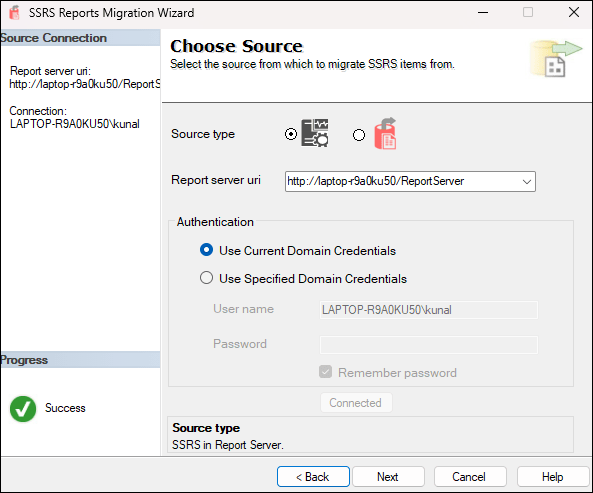
- Choose the source type: either an SSRS Report Server or an SRMW file.
- Enter the Report Server URI (for example,
http://localhost/ReportServer). - Select the authentication method:
- Use Current Domain Credentials
- Use Specified Domain Credentials (provide
domain\usernameand password)
- Click Next.
Choose Target #
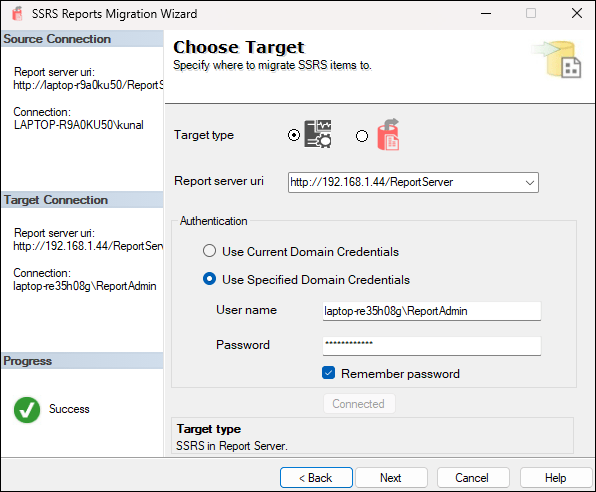
- Choose the target type: another SSRS Report Server or an SRMW file.
- Enter the target server URI.
- Provide authentication details as needed.
- Click Next.
Select SSRS Items to Migrate #
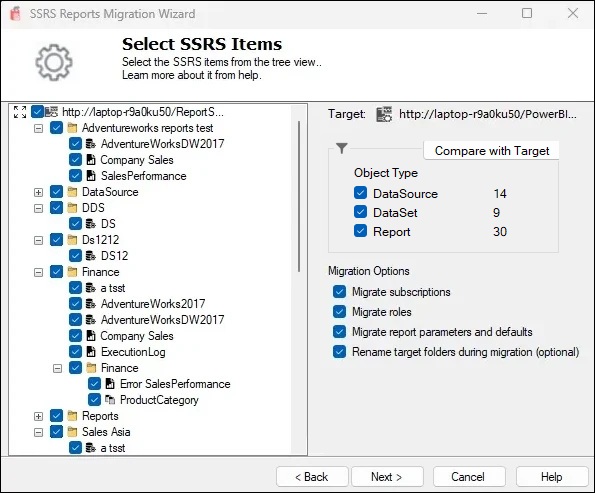
- Browse and select specific SSRS objects: folders, reports, linked reports, datasets, and data sources.
- The tool displays the SSRS folder hierarchy as a tree view.
- The right panel shows object counts by type.
Choose the Migration Options You Need #
Enable only the features relevant to your migration:
- Migrate subscriptions — Include subscriptions.
- Migrate roles — Include security roles at folder, report, dataset, and data source level.
- Migrate parameters and defaults — Include report server-side report parameters and their default values.
- Rename target folders during migration — Enable the Manage Folder Mapping screen.
Compare with Target #
Use Compare with Target to see what already exists on the target before migration. On the Select SSRS Items screen, click Compare with Target, save the pre-populated CSV (for example, SSRS_Comparison_20260605_143022.csv), and the report opens automatically.
- Report Info — Source, target, their types, and the timestamp.
- Summary — Overall and per-type counts of Matched, Source Only, and Target Only items.
- Item Comparison — A row-by-row listing with Name, Path, Type, In Source, In Target, and Status.
Use the Status column filter in Excel to isolate items missing from the target. Matching is based on catalog path only; content changes are not detected. Re-run the comparison after migration to confirm that all items were transferred.
Click Next once you have selected the required items.
Manage Folder Mapping #
This step is available only when Rename target folders during migration is enabled. Use it to define how source folders are created in the target environment.
How It Works #
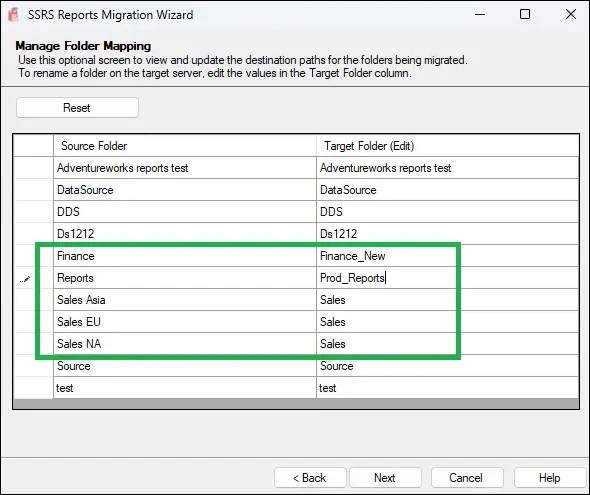
- Each selected root folder is listed with its target folder name.
- The Target Folder column is editable.
- By default, the target folder name matches the source folder name.
Supported Scenarios #
- Rename folders during migration —
Finance→Finance_New - Migrate to a different folder name —
Reports→Prod_Reports - Consolidate multiple folders into one target folder —
Sales Asia,Sales EU,Sales NA→Sales
Folder Rename Behavior #
- The target folder structure follows the mapping you define.
- Dependent references are automatically updated, including shared data sources, shared datasets, and subscriptions (including data-driven subscriptions).
If folder renaming is not enabled, the original folder structure is preserved.
Folder Rename in File Export #
- When exporting to SRMW format, folder renaming is applied to the generated file structure.
- Subscription files use the transformed folder paths.
- References inside exported content are updated accordingly.
- This keeps exported files consistent with the target environment.
- Only top-level selected folders can be renamed.
- Nested reports, datasets, data sources, and subscriptions follow the updated folder structure.
- Internal references are automatically updated during migration.
Update Data Source Connections #
Use this step to update data source connection strings during migration, for example when the target uses different connection details or when stored credentials need to be configured.
How It Works #
Click Fetch Data Sources. The wizard scans the selected SSRS items and populates a grid with connections that can be updated.
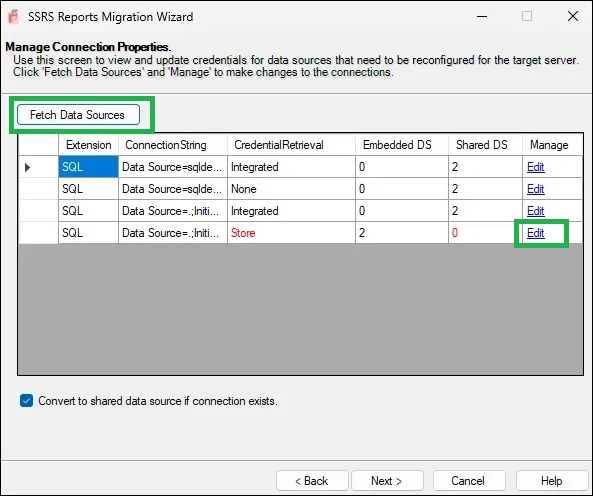
- Extension — Data provider type, such as SQL, OLEDB, or Oracle.
- Connection String — Current connection string.
- Credential Retrieval — Authentication method: Integrated, Store, None, or Prompt. Store appears in red when the password needs to be updated.
- Embedded DS — Number of reports using the connection as an embedded data source.
- Shared DS — Number of shared data sources using the connection. A count of 0 appears in red.
- Manage — Click Edit to view or modify connection details.
Convert to shared data sources if connection exists attempts to convert embedded data sources to shared data sources during deployment. Conversion occurs only when a matching shared data source exists with the same Extension, ConnectionString, CredentialRetrieval, Windows or database credentials (including WindowsCredentials and ImpersonateUser), and UserName when stored credentials are used.
Click Edit to open Manage Connection Properties. You can review shared data sources and reports using the connection, modify the connection string, specify Windows or database credentials, and add a shared data source when none exists.
- DataSourceName — For example,
SalesDS. - DataSourcePath — For example,
/Shared Data. - Click Save to apply the changes.
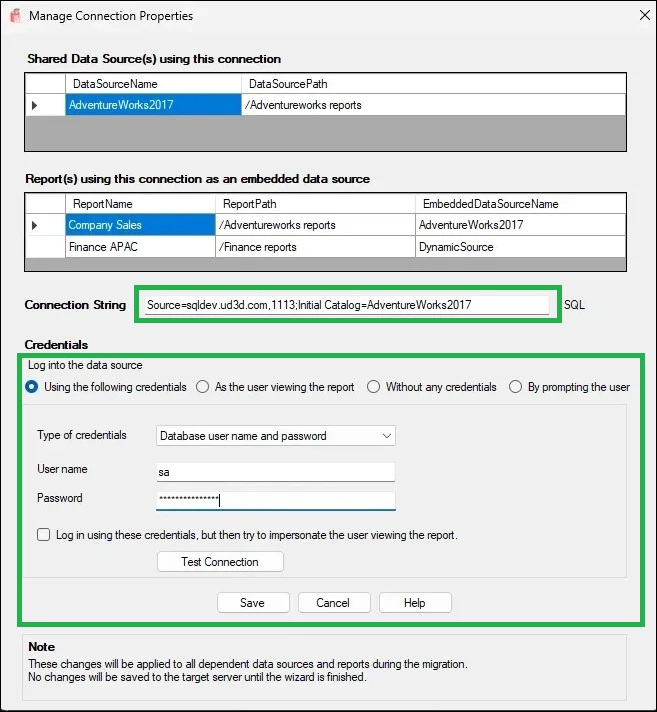
Note: The wizard cannot retrieve passwords from embedded or shared data sources on the source report server. Enter credentials manually where required.
Dependent Objects are those with an embedded connection. During migration, these embedded data sources can be converted into shared data sources when Convert to shared data sources if connection exists is enabled and a matching shared data source is available.
Changes are not committed to the target server until the wizard completes the migration. If no connections are found, the wizard reports that there are no connections available for update.
Manage File Share Subscription Credentials #
If Migrate subscriptions is selected, the wizard scans the source SSRS instance for subscriptions using the File Share delivery method.
SSRS does not return stored passwords for file-share subscriptions, so the wizard provides a screen to collect the network credentials required to recreate them on the target server.

- Each row represents a unique Windows account used by file-share subscriptions.
- The shared folder path is shown for reference.
- The Password column must be filled in manually.
- Click the Subscriptions hyperlink to view reports associated with that user.
After credentials are entered, the wizard applies them when creating subscriptions on the target SSRS server. This step applies only to File Share subscriptions; email and other delivery methods can be skipped.
Review and Confirm #

Before You Migrate (Checklist) #
- Selected the correct source and target.
- Selected all intended SSRS items, including reports, data sources, datasets, and subscriptions.
- Optionally updated connection strings and provided required credentials.
- Reviewed the migration summary for New versus Update items.
Script Button #
Before clicking Finish, use Script to generate a ready-to-run command-line script from the current wizard selections.
- Copy to Clipboard — Copies the generated script for use in a terminal, Task Scheduler job, or CI/CD pipeline configuration.
- Save to File — Saves the script as a
.batfile.
The generated script includes the current source, target, selected items, folder mapping, and migration options, allowing the same migration to be rerun without using the wizard again.
Security Note: Passwords are never included in the generated script. Replace
<source_password>and<target_password>with actual credentials before running it. Where possible, use Windows Authentication to avoid storing passwords in script files.
See the Automation & Command-Line Reference for full parameter documentation and examples.
Click Finish to start the migration.
Migration Summary #

- View a detailed log of migrated items.
- Review warnings about existing folders or skipped operations.
- Click View Report to view the migration log during or after migration.
Glossary of Terms #
| Term | Meaning | Example |
|---|---|---|
| SRMW File | A migration package created by the SSRS Reports Migration Wizard. It stores metadata about reports, datasets, data sources, subscriptions, and shared references, allowing migration without a live SSRS server. | UATserver.srmw |
| Shared Data Source | A reusable SSRS data connection. Multiple reports and datasets can share it. | AdventureWorks2017 |
| Embedded Data Source | A data connection defined inside a single report or dataset. It can be converted into a shared data source during migration if a matching one exists. | Company Sales report using AdventureWorks connection |
| Dependent Objects | SSRS items such as reports and datasets that use a specific data source. | Company Sales, Customer Internet Sales |
| Connection String | Defines the database server and catalog that SSRS connects to. | Data Source=sqldev.ud3d.com,1113;Initial Catalog=AdventureWorks2017 |
| Credential Retrieval | Defines how SSRS gets credentials: None, Integrated, Store, or Prompt. | Store |
| Windows Credentials | Indicates whether stored credentials are Windows domain credentials such as DOMAIN\User rather than SQL/database credentials. | False (database username and password) |
| Impersonate User | Tells SSRS to impersonate the specified user when connecting to the data source, usually with Windows credentials. | False |
| UseOriginalConnectString | Controls whether the original connection string is retained when migrating/deploying. If True, the original value is used; if False, the updated value is used. | True |
| OriginalConnectStringExpressionBased | Indicates whether the original connection string was an expression instead of a fixed string. | =Parameters!ServerName.Value |
| Subscription | A scheduled task that delivers reports automatically. Standard Subscription uses fixed parameters/credentials; Data-Driven Subscription uses dynamic recipients, parameters, and destinations. | — |
Limitations #
- If credentials are not configured, subscriptions will fail to migrate.
- Only Native mode SSRS servers are supported; SharePoint mode is not supported.