Moving an SSIS Catalog (SSISDB) between SQL Server environments can involve projects, environments, parameters, permissions, and environment-specific configuration. The SSIS Catalog Migration Wizard provides a guided way to select SSIS Catalog items, compare source and target, migrate configuration, map folders, replace environment and parameter values, and export or import migrations through an .scmw file.

Visual Studio Marketplace
SSIS Catalog Migration Wizard
Extend Visual Studio with an easy way to migrate SSIS Catalog projects.
What is SSIS Catalog Migration Wizard?
SSIS Catalog Migration Wizard is designed to migrate all or part of an SSIS Catalog from one environment to another. It supports SQL Server SSISDB and SCMW export/import workflows, together with catalog inspection, source-versus-target comparison, configuration-only migration, folder mapping, environment and parameter value replacement, explicit permission migration, and project validation.
When to use SSIS Catalog Migration Wizard
- Migrate an SSIS Catalog from one SQL Server environment to another.
- Migrate selected folders, projects, or environments instead of the entire catalog.
- Compare source and target catalogs before migrating changes.
- Move SSIS Catalog content between environments with different configuration values.
- Export catalog content to an
.scmwfile and import it into another environment. - Inspect the source catalog for configuration issues before migration.
- Automate repeatable migrations using the command-line utility.
Before you migrate
Create a fresh SSISDB in the target Integration Services Catalog if it does not already exist. The current AzureOps documentation recommends this approach rather than restoring an existing SSISDB database directly onto the target.
Also review environment variables, project parameters, package parameters, permissions, and any environment-specific values before starting the migration.
Step-by-step SSIS Catalog migration
1. Select the source and target
Select the source and destination for the migration. The wizard supports SQL Server SSISDB and SCMW files as source or target types for the documented migration workflows.
2. Select SSIS Catalog items
Select the folders, projects, and environments that should be included in the migration.
Compare source and target
Use the comparison option to review differences between source and target. The wizard identifies items that are present only in the source, items that differ between source and target, and items that are unchanged.

The comparison report can be downloaded as CSV and includes project deployment date, SSIS package count, project parameter count, and environment variable count comparisons.
Migrate only configuration
The configuration-only option migrates project references and parameter values without the project code (.ispac) when the source project already exists in the target. If the source project is not present in the target, both the project and its configuration are migrated.
Choose Copy or Move
The wizard provides Copy and Move migration types. Copy is the default. Move is used when selected source catalog items should be deleted as part of the migration.
Migrate explicit permissions
Folders, projects, and environments can have explicit permissions. Enable the corresponding option when those explicit permissions should be migrated to the target.
Inspect the source catalog
Use the source inspection feature to identify issues in the SSIS Catalog before migration. This is particularly useful for reviewing environment configuration before moving the catalog.

See the SSIS Catalog inspection guide for more detail.
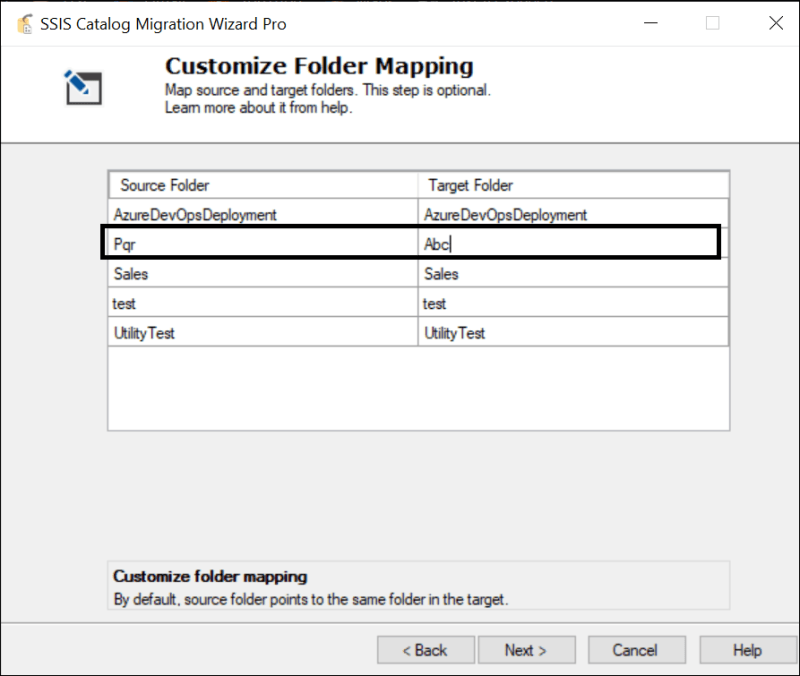
3. Customize folder mapping
The folder mapping screen lets you map source folder names to different target folder names. The wizard populates the selected source and target folders, and the target folder name can be edited when required.
4. Replace environment and parameter values
Use replacement rules when configuration values need to change between environments. The wizard can suggest replacement values based on the selected scope, and the Ref column shows affected environment variables and parameters.

Replacement scopes
- EnvironmentVariables — replace applicable environment variable values.
- ProjectParameters — replace applicable project parameter values.
- PackageParameters — replace applicable package parameter values.
Suggestion methods
The wizard provides two documented suggestion methods for replacement rules.
RegexSubstring
This is the default suggestion method documented for the wizard. It can be used when replacing part of values such as database connection strings.
ActualValue
This method lists environment variable, project parameter, and package parameter values for replacement suggestions and supports exact-value replacement.
5. Review overwrite settings
The Overwrite environment variable and parameter server-side values option can recreate existing target environment variables from the source and overwrite server-side default values already set on target project and package parameters.
For incremental migrations, the current documentation recommends leaving this option unchecked so that existing target-specific values are not unnecessarily overwritten.
6. Handle sensitive data carefully
When exporting an SSIS Catalog to an SCMW file, the wizard provides an option to include sensitive variables and parameter values.
Security note: The current documentation states that an SCMW export file is not encrypted. If sensitive data is included, it is stored in the export file as free text. Protect SCMW files accordingly.
7. Validate projects after migration
The wizard can validate deployed projects after migration. The documented validation process uses environment_scope = 'A', which validates each project against its assigned environment references.
A 32-bit runtime option is also available when project validation needs to use the 32-bit runtime.
SCMW export and import
.scmw is the export format used by SSIS Catalog Migration Wizard. It can be used as an intermediate file when using an export/import workflow.
- Export selected SSIS Catalog items from the source SSISDB to an SCMW file.
- Move the SCMW file to the environment where the target SSISDB is accessible.
- Import the SCMW file into the target SSISDB.
See the detailed SSISDB export and import guide.
Associate the SCMW file type with the application
Windows can be configured to associate the SCMW file type with the migration wizard. On the Choose Target screen, enable the option to associate the SCMW file type with the application. This is a one-time setting for the application path.

Automating SSIS Catalog migrations
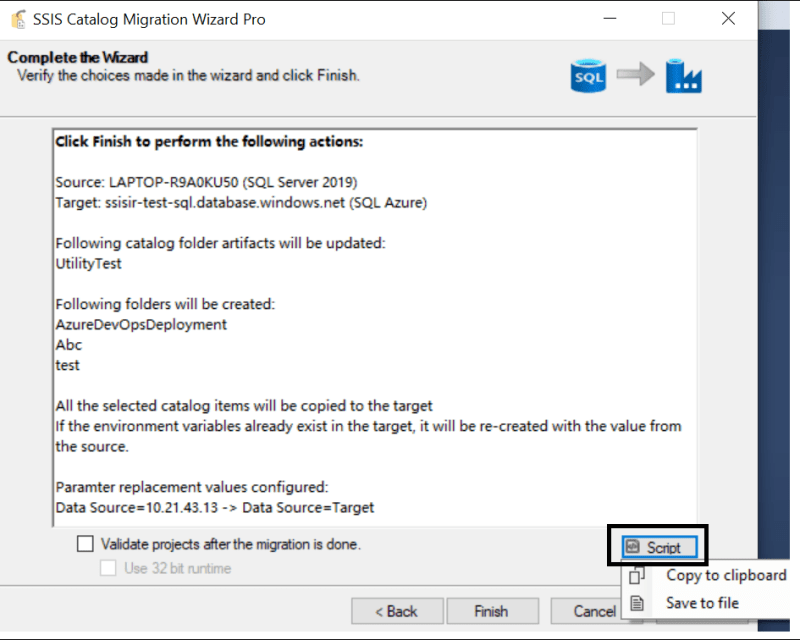
The SSIS Catalog Migration Wizard includes a command-line utility for automating routine migration or inspection operations. The command-line executable is SSIS.Cataloger.Pro.exe.
Command-line parameters
| Parameter | Usage | Description |
|---|---|---|
st | Mandatory | Source type: 0 = SQL Server, 1 = Azure SSIS IR, 2 = SCMW file. |
ssn | When st = 0 | Source SQL Server instance name. |
su | When st = 1 | Source user name for the documented Azure SSIS IR scenario. |
sp | When st = 1 | Source password for the documented Azure SSIS IR scenario. |
tt | Mandatory | Target type: 0 = SQL Server, 1 = Azure SSIS IR, 2 = SCMW file. |
tsn | When tt = 0 | Target SQL Server instance name. |
tu | When the documented Azure SSIS IR target scenario applies | Target user name. |
tp | When the documented Azure SSIS IR target scenario applies | Target password. |
scmwfp | When st or tt = 2 | Full path of the SCMW file. |
opr | Optional | Operation: migrate or inspect. The documented default is migrate; the original documentation marks this parameter as preview. |
items | Optional | Selected catalog items in JSON format. Example: [{"FolderName":"Name of the folder","Projects":["testUC"],"Environments":["env1"]}]. |
mt | Optional | Migration type: copy or move. The documented default is copy. |
fm | Optional | Source-to-target folder mapping. Example: {"Azure test":"Azure prod"}. |
oev | Optional | Overwrite environment variables. Documented values are true and false, with false as the default. |
lfd | Optional | Log-file directory for command-line execution logs and errors. |
Command-line usage examples
The examples below cover the main command-line workflows: exporting an SSIS Catalog to SCMW, importing selected artifacts, migrating selected artifacts between SQL Server instances, and inspecting the catalog.
SSIS.Cataloger.Pro.exe /st:0 /ssn:. /tt:2 /scmwfp:"D:\SCMW exports\Export_2021-07-18_06-49-17.scmw"Import selected SSIS Catalog artifacts from an SCMW file and map a source folder to a different target folder:
SSIS.Cataloger.Pro.exe /st:2 /scmwfp:"D:\SCMW exports\Export_2021-07-18_06-49-17.scmw" /tt:0 /tsn:TargetServer /items:"[{\"FolderName\":\"Azure test\",\"Projects\":[],\"Environments\":[\"env1\"]}]" /fm:"{\"Azure test\":\"Azure prod\"}"Migrate selected SSIS Catalog artifacts between SQL Server instances:
SSIS.Cataloger.Pro.exe /st:0 /ssn:SourceServer /tt:0 /tsn:TargetServer /items:"[{\"FolderName\":\"Azure test\",\"Projects\":[],\"Environments\":[\"env1\"]}]" /lfd:"D:\SCMW exports"SSIS.Cataloger.Pro.exe /st:0 /ssn:SourceServer /opr:inspectExit codes
0= Success-1= Failure
Installation
The SSIS Catalog Migration Wizard is available in the following formats:
- Visual Studio extension — Download from Visual Studio Marketplace.
- SSMS extension for SSMS 18, 19, 20, and 21.
- Standalone tool.
For installation instructions and the latest supported versions, see the SSIS Catalog Migration Wizard documentation.
Related SSIS Catalog guides
- Export and import SSISDB using an SCMW file
- Inspect an SSIS Catalog before migration
- Copy SSIS environment variables to another server
- Create an SSIS Catalog in SQL Server
- Export SSIS projects from SQL Server
This guide focuses on the documented capabilities and workflow of SSIS Catalog Migration Wizard. Before a migration, review the source and target SSISDB environments, permissions, configuration values, and any sensitive data that may be included in an SCMW export.