Quick answer: In Power BI, privacy levels tell Power Query whether data from one source can be combined with data from another. Use Organizational for trusted internal business sources, Private for sensitive data that must stay isolated, and Public only for data that is genuinely public. These settings are about safe data combination—not who can open your report.
You’ll usually notice privacy levels when you merge an Excel file with SQL Server data, combine a SharePoint list with an API, or hit a Formula.Firewall/privacy error during refresh. Picking the right setting can resolve the issue without weakening your data protections.
What do Power BI privacy levels actually control?
Power BI uses Power Query to retrieve and transform data. When a query combines sources, Power Query may try to push filters or other operations back to a source—for example, turning a filter into a SQL WHERE clause. This is called query folding.
That can be efficient, but it also means values from one source could influence a request sent to another. Privacy levels help Power Query decide whether that kind of data exchange is allowed. If the levels don’t permit it, Power Query may isolate the operations, buffer data, or block the combination.
Think of privacy levels as boundaries between data sources. They are not a replacement for SQL permissions, Power BI workspace access, row-level security (RLS), or sensitivity labels.

Power BI privacy levels explained with practical examples
| Level | Use it when | Practical example |
|---|---|---|
| Organizational | The source contains internal data intended for a trusted business environment. | Your company’s SQL Server sales database, an internal SharePoint list, or a company-managed Excel file used for reporting. |
| Private | The source contains confidential data that should remain isolated from other sources. | An HR workbook with employee salaries, a compensation file, or a confidential planning spreadsheet. |
| Public | The source contains genuinely public information that can be combined without creating a confidentiality risk. | A public government statistics dataset or a genuinely public reference table downloaded from an open website. |
1. Organizational: the normal choice for internal reporting
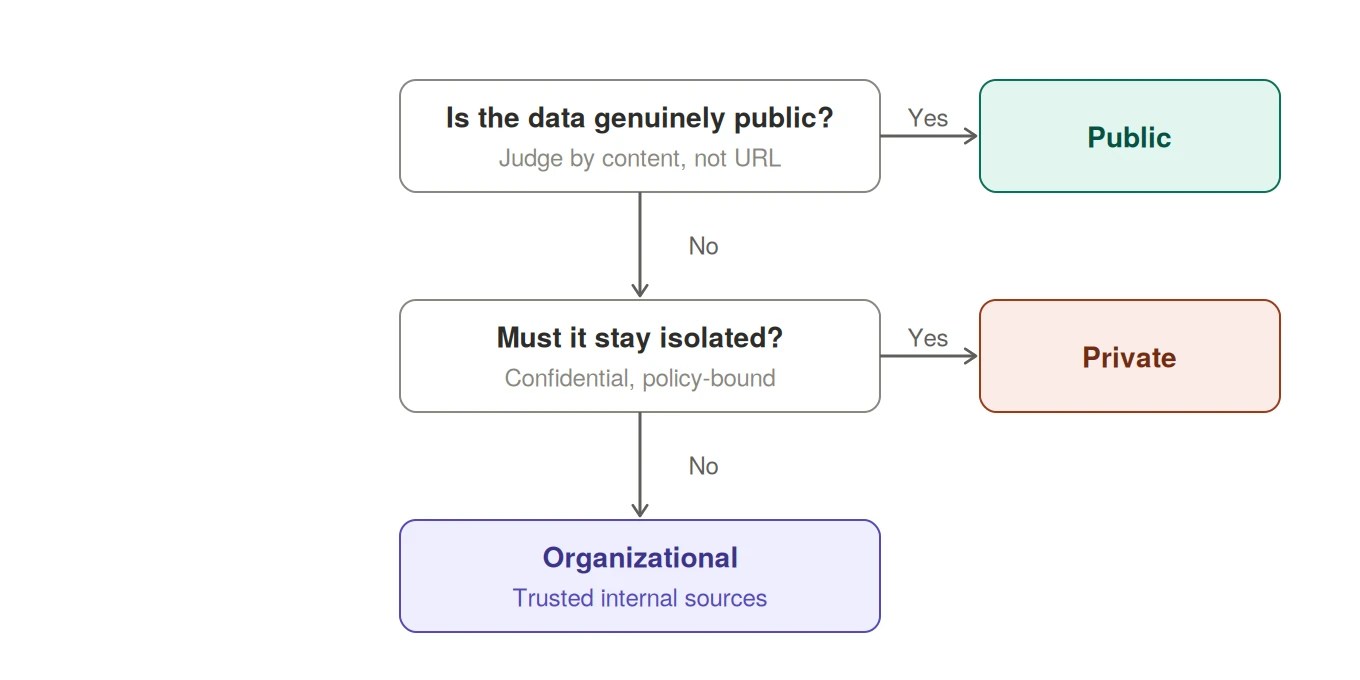
Suppose your report combines orders from an internal SQL Server database with a SharePoint list containing sales territories. Both are managed by your company and intended for internal reporting. Organizational is usually the appropriate level for both sources.
This allows Power Query to combine data within the organizational boundary while keeping it isolated from Public sources. It does not mean every employee can access the underlying database or SharePoint list; the source’s own permissions still apply.
2. Private: for data that should not flow into another source
Imagine an HR analyst merges an employee table with a workbook containing salary adjustments. If the workbook is confidential, mark it Private. The goal is to prevent its contents from being passed to another data source as part of query evaluation.
Private is deliberately restrictive. It can prevent some cross-source combinations and query-folding optimizations, even if both sources are owned by the same company. If a query fails after you set a source to Private, don’t immediately change it to Organizational just to make refresh work. First decide whether that data is genuinely allowed to be combined with the other source.
3. Public: only when the data really is public
Suppose a report combines internal sales figures with a public country-code reference downloaded from an open government website. The reference data may be Public, while the company sales database remains Organizational.
Do not mark a source Public just because the report is shared widely, the URL is reachable, or the data looks harmless. A file stored on a public website can still contain information you should not send to other sources. Classify it based on what the data contains and where it is safe for that data to flow.
Example: why a merge can trigger a privacy error
Say you have these two queries:
Salesreads order data from your company’s SQL Server.AllowedRegionsreads a list of regions from an internal Excel workbook.
You merge them to keep sales for approved regions. Power Query may try to use the Excel values to filter the SQL query. If the sources have incompatible privacy levels, Power Query can block that data exchange or show a Formula.Firewall-related error.
In my work with SQL Server and Microsoft data platforms, I’ve learned not to assume every Formula.Firewall error is fixed by changing a privacy level. When a query combines SQL Server data with Excel or SharePoint, I check the source classifications and query references first. Disabling privacy checks is not the first fix I’d recommend.

For a normal internal reporting workflow, review whether both sources belong to the same trusted organizational boundary. If they do, set both to Organizational, assuming your organization’s policy permits it. If the workbook contains confidential information that must remain isolated, keep it Private and redesign the query or workflow rather than weakening the boundary automatically.
A Formula.Firewall error does not always mean the privacy levels alone are wrong. Query structure, referenced queries, and how data-source access is partitioned can also matter.
Quick Formula.Firewall checks
- Check the privacy level of every source used by the affected and referenced queries.
- If the error says a query references other queries or steps, inspect the query structure as well as the privacy levels.
- Change a source to Organizational only when it is trusted and your policy allows the data to be combined. Test the published model separately if service refresh still fails.
Available on Microsoft Store
SSRS Reports Migration Wizard
A simple Windows tool for migrating SSRS reports, data sources, and related configurations between report servers.
How to change privacy levels in Power BI Desktop
- Open the PBIX file in Power BI Desktop.
- Select File → Options and settings → Data source settings.
- Select the relevant source. Choose Edit Permissions (or the equivalent permission-editing option shown for that source).
- Choose the appropriate privacy level: Private, Organizational, or Public.
- Confirm the change, close the dialog, and refresh the query.
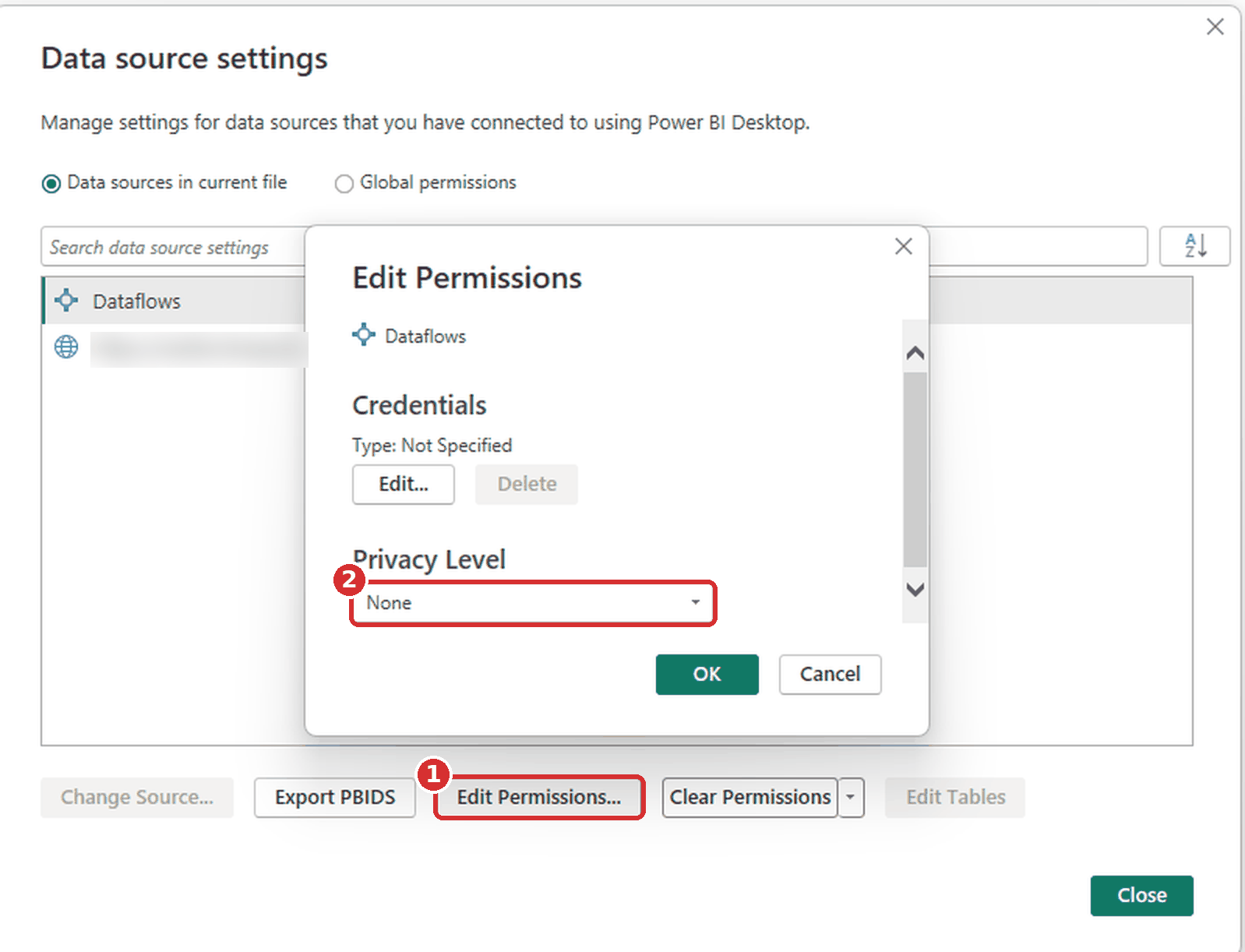
Repeat for each source involved in the combination. If the report will be published, verify the corresponding connection and privacy configuration in the Power BI service or gateway environment as well. Desktop settings and service connection settings are separate places to check; a successful refresh on your machine does not by itself prove a scheduled refresh will work.
What about the “ignore privacy levels” option?
Power Query includes options that can ignore privacy levels when combining sources. You may see this described as Fast Combine or an option to ignore privacy settings. It can make some combinations work differently and may improve performance, but it removes an important safeguard: Power Query can no longer rely on those privacy boundaries to prevent unwanted data transfer.
Do not use this as the default fix for a refresh error. In a managed or production environment, follow your organization’s security policy. If an exception is approved for a controlled scenario, document the reason and verify that sensitive data cannot be sent to an untrusted source.
One important limitation: ignoring privacy levels in Power BI Desktop does not automatically apply to semantic models in the Power BI service. If Desktop refresh succeeds but scheduled refresh fails, check the service or gateway connection settings and query structure rather than assuming the Desktop option carries over.
Privacy levels are not report security
This distinction matters:
- Privacy levels: govern how Power Query can combine or exchange data between sources.
- Source permissions and credentials: determine whether the connection can access the data in the first place.
- Row-level security (RLS): limits which rows a report consumer can see in a semantic model.
- Sensitivity labels: classify and help protect content such as reports and semantic models.
For example, setting a salary workbook to Private does not stop a user who already has access to a published report from seeing salary values included in that report. You must still design the model, permissions, and RLS appropriately.
Quick checklist before you publish
- Classify each source by the sensitivity of its data and the boundary it should stay within.
- Use Organizational for trusted internal sources when policy permits them to be combined.
- Keep confidential sources Private when their data must be isolated.
- Use Public only for data that is genuinely safe to expose beyond your trusted environment.
- Test refresh in the Power BI service, including gateway or cloud connection settings where applicable.
- Do not disable privacy checks simply to hide a Formula.Firewall error.
- Use source permissions, workspace access, RLS, and sensitivity labels for their own security purposes.
Frequently asked questions
Which privacy level should I use for SQL Server in Power BI?
For a company-managed SQL Server database used for internal reporting, Organizational is usually appropriate. Use Private if the source must be isolated under your security policy. The connector type alone does not determine the right level; the data and its intended boundary do.
Should I set both sources to Organizational when merging them?
Only when both sources are trusted internal sources and your organization permits them to be combined. Do not change a confidential source to Organizational just to bypass an error.
Do privacy levels affect Power BI report viewers?
Not directly. They govern how Power Query combines source data during query evaluation and refresh. Report access and which rows users can see are controlled through permissions, model design, and features such as RLS.
Why does Power BI show a Formula.Firewall error?
Power Query may be blocking a combination because privacy boundaries or query evaluation patterns prevent safe data exchange. Check the privacy level of every involved source, then review the query structure. The message does not always mean you should disable privacy checks.
Further reading
- Microsoft Learn: Privacy levels in Power Query
- Microsoft Learn: Behind the scenes of the Data Privacy Firewall
- Microsoft Learn: Security best practices for Power Query
- Microsoft Learn: Power BI content creator security planning
See more

Visual Studio Marketplace
SSIS Catalog Migration Wizard
Extend Visual Studio with an easy way to migrate SSIS Catalog projects.

Kunal Rathi
With over 15 years of experience in data engineering and analytics, I've assisted countless clients in gaining valuable insights from their data. As a dedicated supporter of Data, Cloud and DevOps, I'm excited to connect with individuals who share my passion for this field. If my work resonates with you, we can talk and collaborate.