Microsoft Fabric Data Agent lets users ask natural-language questions about governed enterprise data and receive data-driven answers without writing SQL, DAX, or KQL themselves. In 2026, Fabric Data Agents support sources including Lakehouses, Warehouses, Power BI semantic models, KQL databases, mirrored databases, ontologies, and Microsoft Graph.
This updated guide shows how to build a Fabric Data Agent with the AdventureWorksDW sample, configure instructions and example questions, test the agent, understand its security model, and connect it to broader agentic applications.
TL;DR: what is a Microsoft Fabric Data Agent?
A Fabric Data Agent is a governed conversational analytics layer over Fabric data. It identifies the appropriate connected data source and uses natural-language-to-query capabilities to generate read-only SQL, DAX, or KQL queries. The agent then returns an answer based on data the requesting user is authorized to access.
Prerequisites
• A paid F2 or higher Fabric capacity, or Power BI Premium capacity P1 or higher with Microsoft Fabric enabled.
• A supported data source with data and appropriate read access.
• Your Fabric administrator must configure the required Data Agent tenant settings, including cross-geo AI settings where applicable.
• Data Agents use Microsoft-managed AI services in the Fabric experience; you do not need to create an Azure OpenAI key for the in-product chat experience.
How to create a Data Agent in Microsoft Fabric
The following walkthrough uses AdventureWorksDW as an example. The exact data-source options available to you depend on your Fabric environment and permissions.
Step 1: open your Microsoft Fabric workspace
- Open Microsoft Fabric.
- Select or create the workspace where your data is available.
Step 2: Prepare a data source
For this walkthrough, use a Lakehouse containing the AdventureWorksDW tables. You can also use other supported Fabric sources such as a Warehouse, Power BI semantic model, KQL database, mirrored database, ontology, or Microsoft Graph.
- Create or open your Lakehouse.
- If your data already exists elsewhere in OneLake, consider using a OneLake shortcut rather than copying the data.
- Make sure you have the required read permissions on the data source.
I used the classic AdventureWorksDW dataset. OneLake Shortcuts make it possible to expose existing data without creating another physical copy in the Lakehouse.
Step 3: create the Fabric Data Agent
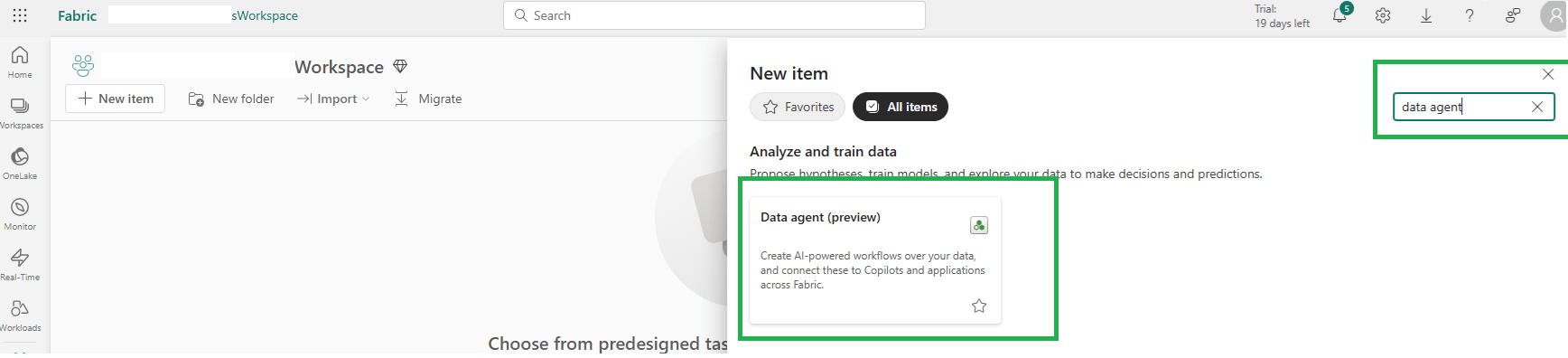
- In your Fabric workspace, select + New item.
- Search for and select Fabric data agent.
- Enter a name for the agent and create it.
- Use the agent configuration experience to add your data sources and configure its behavior.
Step 4: Add data sources
Fabric Data Agents can use up to five data sources. Supported sources include Lakehouses, Warehouses, Power BI semantic models, KQL databases, mirrored databases, ontologies, and Microsoft Graph, subject to the current Fabric capabilities and your permissions.
- Open the agent’s Data sources configuration.
- Select Add data source.
- Choose the required Fabric item from the OneLake catalog and add it.
- For a Lakehouse or Warehouse, select the relevant tables or objects that the agent should use.
Keep the scope focused. Connecting only the data required for the questions your users need to answer generally makes the agent easier to govern and tune.
Step 5: configure Agent Instructions
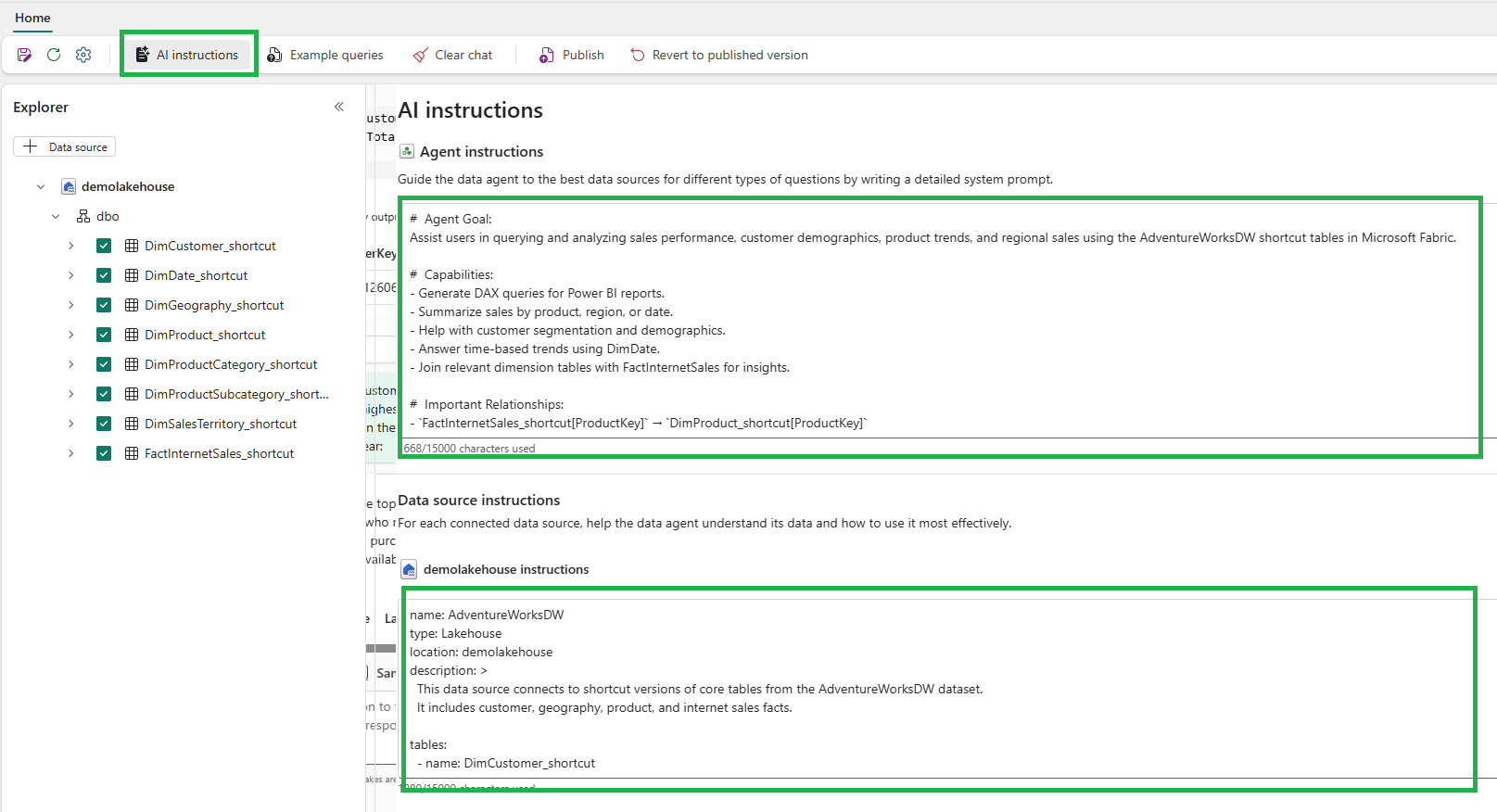
- Open the Agent Instructions configuration.
- Describe the agent’s purpose, business terminology, preferred behavior, and important rules.
- Explain important relationships and calculation logic that may not be obvious from the schema.
- Use clear examples to show the types of questions the agent should answer.
For the AdventureWorksDW example, instructions can look like this:
Goal:
Assist users in analyzing sales, customers, geography, and product performance.

Key relationships:
- FactInternetSales.ProductKey → DimProduct.ProductKey
- DimProduct.ProductSubcategoryKey → DimProductSubcategory.ProductSubcategoryKey
- DimProductSubcategory.ProductCategoryKey → DimProductCategory.ProductCategoryKey
- FactInternetSales.CustomerKey → DimCustomer.CustomerKey
- DimCustomer.GeographyKey → DimGeography.GeographyKey
- FactInternetSales.OrderDateKey → DimDate.DateKey

Example questions:
- What were the top-selling product categories in the latest available year?
- Which cities generated the highest internet sales?
- What was the sales trend by quarter?

Answer with concise tables or summaries when appropriate.
Step 6: Add Data Source Instructions and example queries
Data Source Instructions provide more specific context about tables, columns, joins, filters, and business rules. Example queries provide few-shot examples that show the agent how users’ questions map to expected queries and results.
Data source: AdventureWorksDW

Tables:
- DimCustomer: customer demographics and customer keys
- DimDate: calendar and fiscal date attributes
- DimProduct: product attributes
- DimProductCategory: product categories
- DimProductSubcategory: product subcategories
- DimGeography: country, state, and city information
- FactInternetSales: sales amount, quantity, customer, product, and date keys

Important rule:
Use the documented relationships when joining sales facts to dimensions.
Use the latest available date in DimDate when a user asks for the latest period.
Available on Microsoft Store
SSRS Reports Migration Wizard
A simple Windows tool for migrating SSRS reports, data sources, and related configurations between report servers.
Step 7: Test, diagnose, and fine-tune the agent
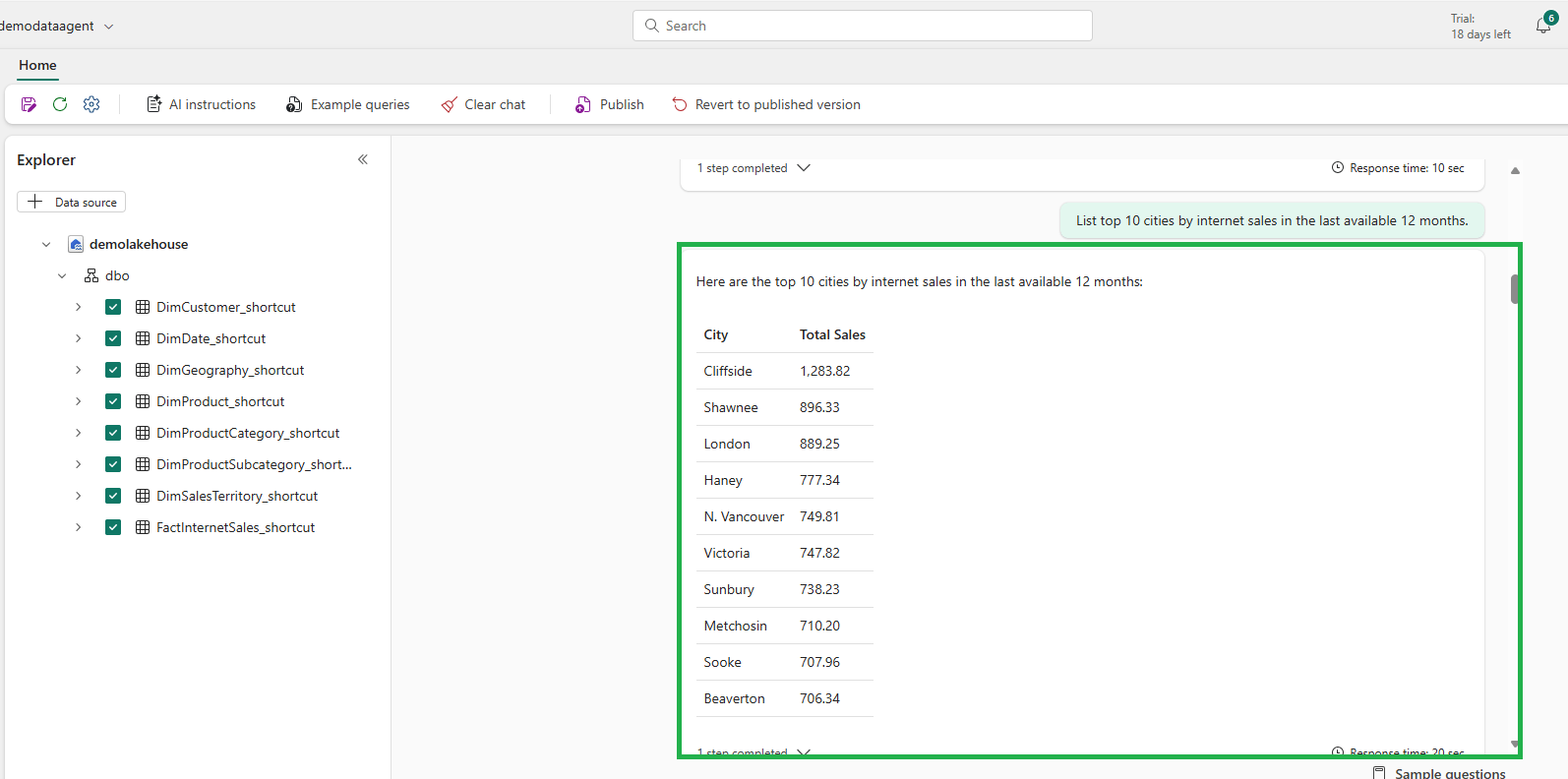
Test the agent with representative business questions. For example:
List the top 10 cities by internet sales in the latest available 12 months.
List the top 5 customers who made the highest purchases in the latest available year.
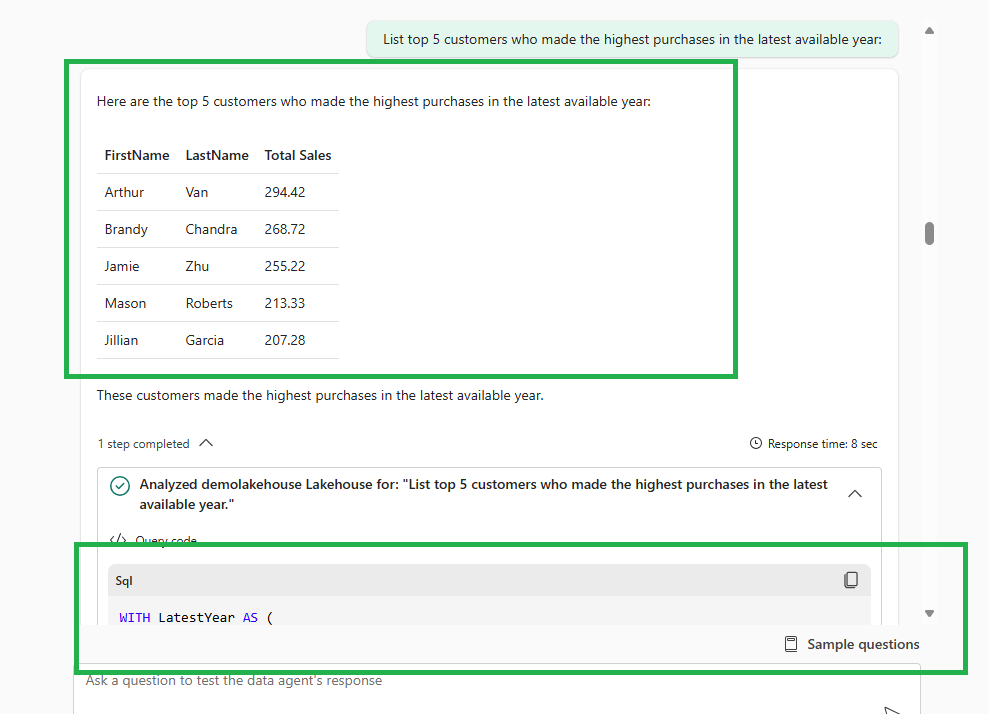
For supported data sources, Fabric Data Agents generate read-only queries using the appropriate query language—for example, SQL for Lakehouse and Warehouse data, DAX for Power BI semantic models, and KQL for KQL databases. Review the generated query and result when troubleshooting unexpected answers.
How does a Fabric Data Agent Work?
At a high level, the agent receives the user’s natural-language question, considers the configured instructions and available data sources, selects an appropriate source and query-generation capability, executes a read-only query under the user’s permissions, and produces a conversational answer.
- Understand the question — interpret the user’s intent and relevant business terms.
- Select context — use the connected sources, schema, instructions, and examples.
- Generate a query — use SQL, DAX, or KQL depending on the selected source.
- Execute securely — query only data the user is authorized to access.
- Return an answer — present the resulting information conversationally.
Fabric Data Agent Runtime: Standard vs Preview
Fabric now provides two data-agent runtimes. The Standard runtime is the generally available runtime and is the default for new data agents. The Preview runtime contains newer orchestration and query-generation improvements before they graduate to the standard runtime.
- Standard runtime: use for production scenarios where predictable behavior and fewer changes between releases are important.
- Preview runtime: use when you want to evaluate newer capabilities and are comfortable with behavior changing as features mature.
Security and Permissions
Fabric Data Agents are designed for read-only data access. The agent uses the requesting user’s identity and permissions when accessing connected data, so users should only receive answers from data they are authorized to query.
- Power BI semantic models can be queried with Read permission; workspace membership is not required for agent interaction with the model.
- Lakehouse, Warehouse, KQL, ontology, and other sources require the relevant read/query permissions.
- Row-Level Security (RLS) and Column-Level Security (CLS) continue to apply where supported by the underlying source.
- Purview and organizational governance policies can restrict which data the agent can access or return.
When Should you use a Fabric Data Agent?
A Data Agent is particularly useful when users need conversational access to governed data and the underlying model is sufficiently well documented.
- Business users need to ask recurring questions without writing SQL, DAX, or KQL.
- Your data platform already contains well-structured Lakehouse, Warehouse, semantic-model, or KQL data.
- You want domain-specific instructions and example questions to guide natural-language analytics.
- You need a read-only analytics capability that respects existing data permissions.
Current limitations and Things to Know
- Data Agents generate read-only SQL, DAX, and KQL queries; they do not modify or delete data.
- Conversational responses are designed for insights rather than returning complete datasets. Current documentation notes a maximum of 25 rows and 25 columns in chat output.
- Answer quality depends heavily on schema quality, permissions, instructions, source descriptions, and example queries.
- Preview runtime and preview features can change as Microsoft evolves them.
- Governance policies such as Purview DLP or access restrictions can affect query results or prevent some data from being returned.
Advanced: Fabric Data Agents in AI Applications
Microsoft Foundry
A published Fabric Data Agent can be used with Microsoft Foundry agents to provide governed access to enterprise data. The Foundry integration supports identity passthrough so the end user’s permissions can be used when the Fabric data agent queries the underlying data.
Microsoft Copilot Studio and multi-agent scenarios
Fabric Data Agents can also participate in broader agentic architectures, including Microsoft Copilot Studio and other AI experiences. In these scenarios, the Data Agent can provide a specialized, governed data-query capability while another agent handles conversation, workflow, or orchestration.
Model Context Protocol (MCP)
Microsoft also provides a preview MCP server capability for Fabric Data Agents. This lets compatible AI clients and applications discover and use the published Data Agent as a standardized data-query interface instead of building a custom integration for every client.
Fabric Data Agent Python SDK
For code-first workflows, Microsoft provides a preview Fabric Data Agent Python SDK for creating, configuring, updating, and publishing Data Agent artifacts programmatically. Microsoft is also transitioning Data Agent querying from the OpenAI Assistants API to the OpenAI Responses API, with the documented migration timeline in the current SDK documentation.
Build Agent with AI: a New Way to Tune Data Agents
Fabric includes a Build agent with AI experience in preview for supported SQL and Eventhouse data sources. It can explore schemas, generate or improve Data Source Instructions and example queries, execute read-only validation queries, and help refine the configuration before you test the agent.
This is useful when you know the business questions you want to answer but need help translating that knowledge into better instructions, source descriptions, and few-shot examples.
Publishing, Sharing, Git, and Deployment
Fabric Data Agents support an iterative draft-and-publish workflow. When you publish an agent, consumers use the published read-only version while you can continue refining the draft. Microsoft also documents Git integration for versioning agent configuration and Fabric deployment pipelines for promoting agents between environments.
Related Fabric learning: For certification-focused coverage of OneLake, Lakehouse, Warehouse, ingestion, transformation, monitoring, and optimization, see our DP-700 exam preparation guide.
Final Thoughts
Fabric Data Agents have evolved beyond the early preview experience. They now provide a governed conversational layer across multiple Fabric data sources, with standard and preview runtimes, richer configuration options, lifecycle management, and integrations for broader AI applications.
The AdventureWorksDW example remains a useful way to understand the fundamentals: connect the right data, describe the model clearly, add representative examples, test real business questions, and refine the instructions based on the generated queries and answers. For production use, permissions, governance, and validation are just as important as the prompt itself.
Pro tips:
1. Keep the agent’s data-source scope focused so it only has access to the data needed for the questions users need to answer.
2. Use clear data-source instructions and representative example queries to improve answer quality.
3. Test the agent with realistic business questions and review the generated query when an answer is unexpected.
See more

Visual Studio Marketplace
SSIS Catalog Migration Wizard
Extend Visual Studio with an easy way to migrate SSIS Catalog projects.

Kunal Rathi
With over 15 years of experience in data engineering and analytics, I've assisted countless clients in gaining valuable insights from their data. As a dedicated supporter of Data, Cloud and DevOps, I'm excited to connect with individuals who share my passion for this field. If my work resonates with you, we can talk and collaborate.