
Quick answer: To migrate SSRS reports from one server to another, prepare the target SSRS environment, move the required reports and related objects, update data source connections and permissions, and validate subscriptions and report execution. For large or repeated migrations, the SSRS Reports Migration Wizard can automate much of this process and provides comparison, export/import, and validation capabilities.
Now available on Microsoft Store
Get SSRS Reports Migration Wizard from Microsoft Store
Install easily and securely through Microsoft’s official channel.
What Needs to Be Migrated?
SSRS migration is more than copying RDL files. Depending on the environment, you may need to move reports, shared datasets, shared data sources, linked reports, subscriptions, folder structure, permissions, and report-server configuration. Connection strings and stored credentials also need to be reviewed when the target environment differs from the source.
Before Migrating SSRS Reports
Prerequisites:
1. Confirm access to both the source and target report servers.
2. Identify the reports, folders, shared data sources, datasets, subscriptions, and permissions that must be migrated.
3. Back up the report server databases and encryption key when migrating the report server installation or its databases.
4. Confirm that the target SSRS/Power BI Report Server environment is configured and reachable.
5. Plan how source data-source connection strings and credentials will map to the target environment.
Step-by-Step: Migrate SSRS Reports from One Server to Another
For a typical report-content migration, the workflow below focuses on selecting the source, selecting the target, reviewing objects, updating connections, and validating the result.
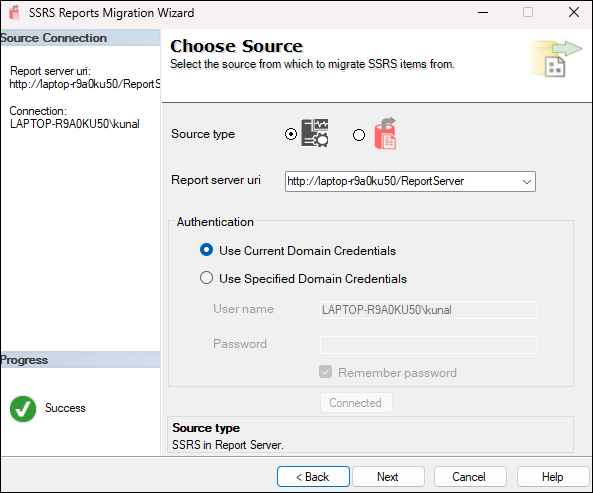
Step 1: Select the Source
Choose the source SSRS server or an .SRMW export created from an earlier migration. Using an export file is useful when the source and target environments cannot be connected directly.
Step 2: Select the Target
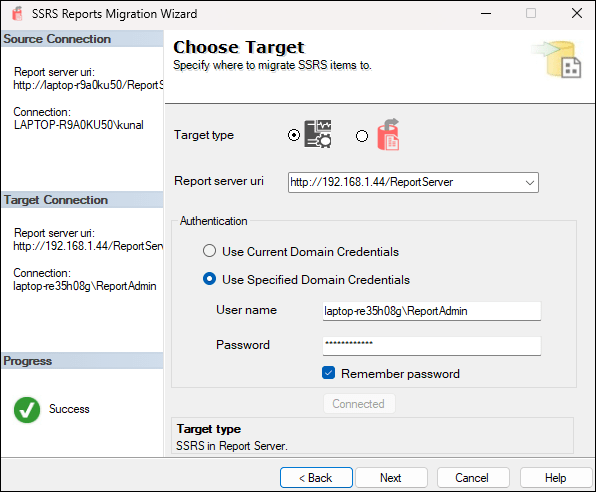
Provide the destination SSRS server and choose the target folder or location where the selected content should be migrated.
Step 3: Select Reports and Related Objects
Select the folders, reports, datasets, data sources, and other SSRS objects that you want to move. For large report servers, filtering and selective migration can make it easier to control the scope.

Step 4: Manage Folder Mapping
If the target folder structure differs from the source, define how source folders should map to the target environment before committing the migration.

Step 5: Update Data Source Connections
When the target server uses different databases, servers, or credentials, review the data source connections before migration.

The wizard can fetch connections used by the selected items and lets you update connection strings and credential settings in one workflow.
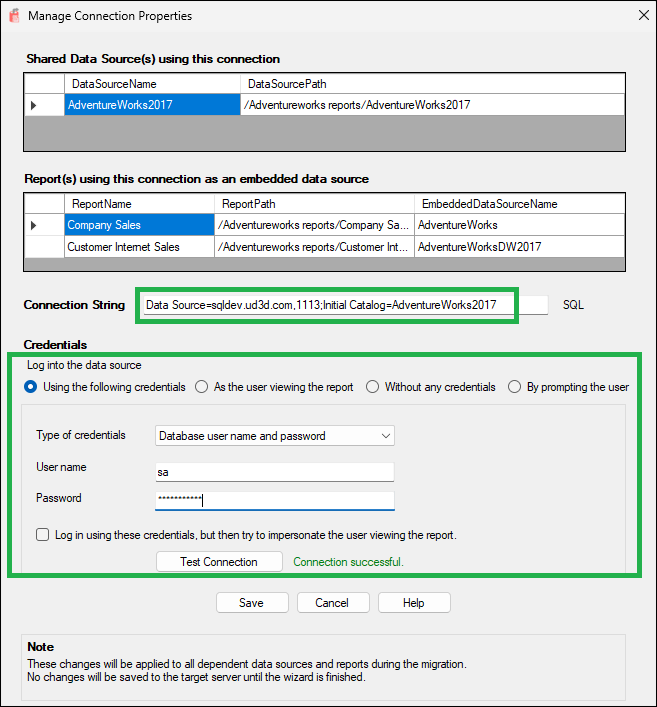
Review connection dependencies
Check which reports and shared data sources use each connection before changing it. This helps avoid updating one connection without understanding which reports depend on it.
Important notes about credentials
- The migration wizard does not retrieve passwords from embedded or shared data sources on the source report server.
- Review credential settings explicitly on the target environment.
- Changes are not committed to the target until the migration process completes.
Step 6: Review the Migration
Review the migration summary before committing the changes. Compare the source and target to identify new, changed, unchanged, or missing items before proceeding.

Step 7: Complete and Validate
After migration, review the final summary and validate representative reports, shared data sources, permissions, subscriptions, and schedules.

Install SSRS Reports Migration Wizard
The wizard is available as a Visual Studio extension and standalone tool. See the documentation for current installation options, prerequisites, and usage details.